Book Appointment Now


How to Pair Your PS4 Controller with Your Console or PC
How to Pair Your PS4 Controller with Your Console or PC
Although the PS4 has a solid reputation, you can expect troubles when your console approaches “last-gen” status. In reality, new problems are identified on a daily basis. If you’re new to the PlayStation 4, you might be feeling a little overwhelmed. You might not know how to connect and utilise the wireless controllers, for example. While the controllers can be used wirelessly if they’re charged, you’ll need to start using them through the micro-USB cable that comes with them.
Do you know what one of the coolest and most inventive features of Sony’s PlayStation 4 console is? It’s the DualShock 4 controller for the PlayStation 4. Thanks to Sony’s innovative thinking, the prior generations were able to overcome all of the cable difficulties and constraints.
However, before you begin using your new PS4 Controller, read our “how to sync PS4 controller” guide. Aside from the additional concerns, the ease of having wireless PlayStation 4 controllers cannot be overstated — but you must connect them to your system in order to utilise them. Although syncing your
PS4 DualShock controllers shouldn’t be a problem for PS4 or PS4 Pro owners, we’re here to clear up any misconceptions. We’ll go over all of the common PS4 controller issues so you can concentrate on picking which titles to play.
How to sync a PS4 controller
It’s simple to connect a PlayStation 4 DualShock controller to a PS4, but you’ll need one piece of hardware: a USB to Micro-B cable. There is no wireless alternative for pairing controllers over Bluetooth, therefore you’ll need a cable to sync new controllers with your PS4 (though you can connect a PS4 or Xbox controller to your smartphone or tablet). A USB 2.0 to Micro-B cable is included with your DualShock 4 controller, but any USB 2.0 to Micro-B cable will work.
Step 1: Connect the controller’s USB cable to the PS4’s USB port.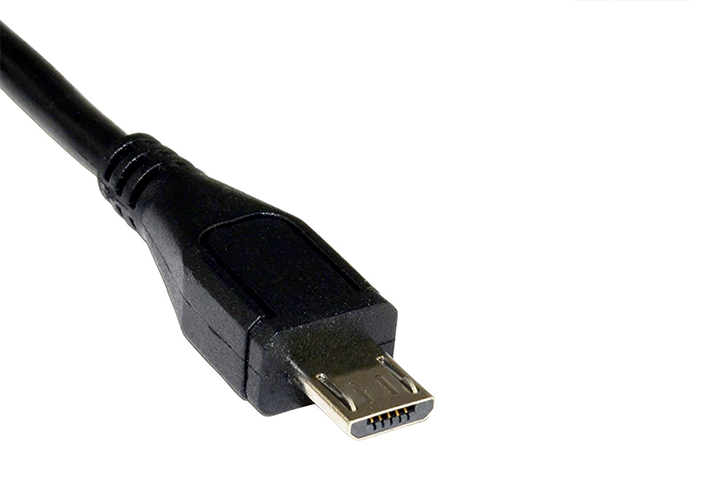 Step 2: Because of the USB cord, your controller should instantly connect to your PS4 when you turn it on. To activate the controller, press the PlayStation button in the centre of the controller. After that, the PS4 should lead you to the login screen, where you can select a player account for that controller.
The LED light bar on the top of the controller will illuminate blue (or another colour if it isn’t the first controller connected – red for player 2, green for player 3, and pink for player 4) when the controller is functional. When the controller is charging but not turned on, the light on the wire turns yellow, indicating that it is charging.
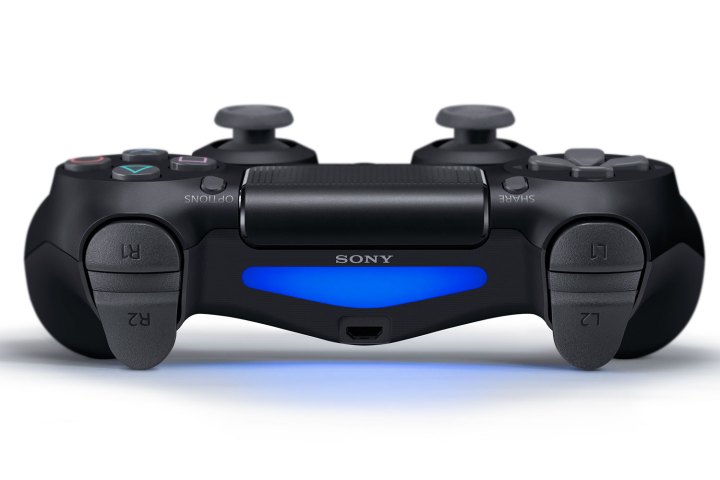
Option 1: Pairing with a PS4 Console
Method A: Wired Connection (Easiest)
This is the standard method for syncing a new controller or reconnecting one that has been used on another device.
- Turn on your PS4 console.
Connect the controller to the console using a micro-USB cable.
- Note: Ensure the cable supports data transfer, not just charging. If it doesn’t work, try a different cable.
- Press the PS Button (the round button in the center).
- The light bar on the controller should turn a solid color (usually blue for player 1). It is now paired. You can disconnect the cable to play wirelessly.
Method B: Wireless Pairing (Requires a Second Controller)
If you do not have a cable but have access to the PS4 menu using another controller or media remote:
- Using the working controller, go to Settings > Devices > Bluetooth Devices.
- On the new controller you want to pair, press and hold the Share button and the PS Button simultaneously for about 5 seconds.
Shutterstock
- The light bar on the new controller will begin to flash rapidly (heartbeat pattern).
- On your TV screen, look for “Wireless Controller” under “Other Devices.” Select it with the working controller to complete the pair.
Option 2: Pairing with a PC
Method A: Wired Connection
- Connect the controller to your PC using a micro-USB cable.
- Windows 10 and 11 usually detect it immediately. You will hear a notification sound.
- For platforms like Steam, the controller is natively supported. Open Steam > Settings > Controller to configure it.
Method B: Bluetooth Connection
- On your PC, open Settings > Bluetooth & devices.
- Click Add device > Bluetooth.
- On your PS4 controller, press and hold the Share button and the PS Button together until the light bar starts flashing rapidly.
- Select “Wireless Controller” from the list on your PC screen.
- Note: While connected, Windows treats it as a generic DirectInput controller. To use it in non-Steam games, you may need software like DS4Windows to trick the PC into thinking it is an Xbox controller.
Troubleshooting Common Issues
- Controller Won’t Pair: If the light bar just flashes white and then turns off, the controller may be trying to connect to a different nearby device.
- Fix: Perform a hard reset. Locate the small hole on the back of the controller near the L2 button. Use a paperclip to press the button inside for 5 seconds, then try pairing again via USB.
- Orange Light Only: If the light bar pulses orange, it is charging but not paired. Press the PS button to attempt a sync.
- PC Latency: Bluetooth connections on PC can sometimes have input lag. If you notice delay, switch to a wired connection or use the official Sony USB Wireless Adapter.
Troubleshooting: Re-pairing your controller
Step 1: When a controller won’t pair wirelessly with your PS4, the most common issue is that the controller’s battery is low. It’s the “unplug it and plug it back in” approach to the problem. When you connect in the controller, make sure it’s charging because the top light bar will turn yellow if it’s not in use. If it’s not charging, there could be a problem with the controller port or the cord.
Step 2: If your pairing troubles aren’t caused by a lack of power or a faulty cable, you may need to reset both your PlayStation controller and your PlayStation 4 to reconnect. You may do this in the PS4’s Settings menu if your controller is still functional. The Suitcase symbol may be found on the far-right side of the home screen.
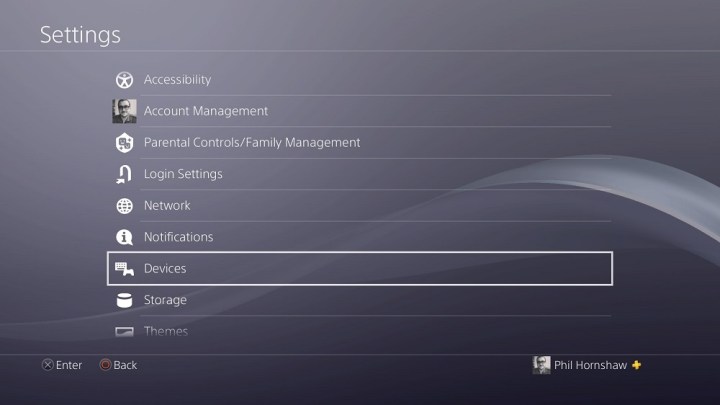
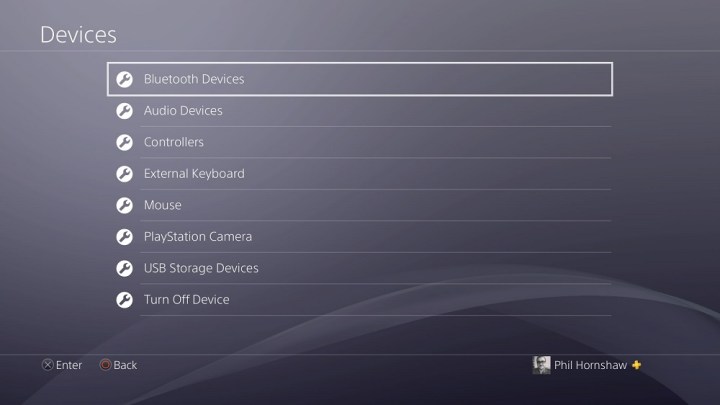
Step 3: Select Bluetooth Devices from the Devices option at the bottom. All of your controllers, as well as any other Bluetooth devices compatible with your PlayStation, such as PS4 headsets and the vastly improved PDP PS4 Bluetooth Remote, will appear in the Bluetooth settings. Choose the one you want to reset (it can be difficult to tell, and if you have more than one, you may need to turn on all of your controllers), pick it, and press the X button.
Select Forget Device from the contextual menu that appears when you press the Options button on your controller. Your controller will become unpaired from your PlayStation 4. After that, you should be able to link the controller with the console again using your USB adapter, as indicated at the beginning of this method.
How to hard reset your controller
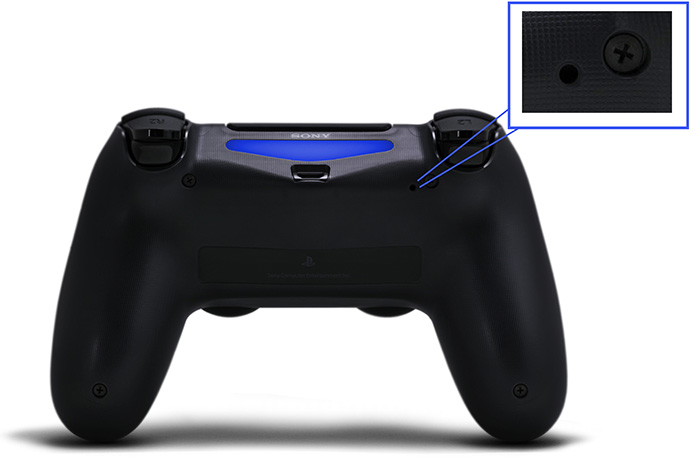
If re-pairing the controller fails, the problem may be with the controller rather than the PS4. You’ll need to reset the controller in that instance. To reset your PS4 controller, you’ll need an unfolded paper clip (or something similarly thin and robust) to push a secret button.
Step 1: Turn down your PS4 and unplug both it and your internet router or modem so that when you reset it, your controller won’t receive any network signals.
Step 2: Now turn the controller over and look on the right side for a little hole. Push the paperclip through the hole and the button for three to five seconds. To be certain, hold it down for a count of ten.
Alternative: How to go USB-only
You can also use a USB-enabled connection to play with your DualShock 4 as a wired controller, bypassing the Bluetooth wireless connection. That’s clearly not ideal when you could play wirelessly, but it’s a workaround if connectivity and signal problems persist.
By modifying the controller settings in the Devices menu, you may set a controller to only connect with the PS4 through USB while it’s plugged in. Navigate to Controllers under Devices, and then set any controllers to only communicate over USB when plugged in. So long as you’ve got a cable connection, signal or Bluetooth problems shouldn’t affect the controller.
How to Sync Additional PS4 Controllers Wirelessly
Once you’ve at the very least one controller synced together with your system, you possibly can add extra wirelessly:
- With your synced controller, find the Settings choice within the row of icons above the PS4 residence menu, represented by an icon that appears like a briefcase.
- Navigate to Settings > Devices > Bluetooth Devices. You should see a list of units presently synced together with your console.
- On the PS4 controller, you want to sync, maintain down the PS button and the Share button concurrently for five seconds.
- When the brand new controller seems within the list of Bluetooth gadget, choose it with the opposite controller. The new controller will then be synced together with your PS4.
How to Unpair a PS4 Controller
- Make certain the controller you want to unpair is turned off.
- Using one other PS4 controller, turn on your console. From the PS4 residence menu, navigate to Setting > Devices > Bluetooth Devices.
- You should see a list of controllers. Select the one you want to unpair and select delete.
- delete.
How to Charge Your PS4 Controller
While it is linked to the PlayStation 4, the controller’s built-in battery will receive a charge. If you leave the controller attached to your PS4 while it is in rest mode, it will continue charging, and the indicator light on the top of the controller will change to yellow. When your controller has a low amount of power, the light will blink yellow, and you should see a notice on the screen asking you to plug it in.
The light bar on top of the controller will glow a different colour depending on which player it is assigned to once it has been charged. Player 1 will have a blue light bar, player 2 will have a red light bar, player 3 will have a green light bar, and player 4 will have a pink light bar.
Pairing with a PlayStation 4 Console
For a New or Reset Controller
- Turn on your PS4 using the power button on the console.
- Connect the controller to the PS4 using a USB cable.
- Press the PS button in the center of the controller. The light bar will glow, and the controller will pair automatically.
- Disconnect the USB cable after pairing-you can now use the controller wirelessly.
To Pair an Additional Controller
- On the PS4, go to Settings > Devices > Bluetooth Devices.
- On the controller you want to pair, hold the PS button + Share button simultaneously until the light bar flashes rapidly.
- Select “Wireless Controller” from the list on your PS4 screen.
Pairing with a Windows PC
You have two main options: wired (USB) or wireless (Bluetooth).
Method 1: Wired Connection (Simplest)
- Use a USB to micro-USB cable (ensure it’s a data cable, not just a charger).
- Connect the controller directly to your PC’s USB port.
- Windows will automatically install basic drivers. The controller is now ready for games with native controller support (like many Steam games).
Method 2: Wireless Bluetooth Connection
Before You Start:
- Ensure your PC has Bluetooth capability (or use a Bluetooth USB adapter).
- Fully charge your DualShock 4.
Pairing Steps:
- Enter pairing mode on the controller:
- Hold the PS button + Share button together for 3-5 seconds until the light bar flashes rapidly.
- On your Windows PC:
- Go to Settings > Devices > Bluetooth & other devices.
- Click “Add Bluetooth or other device” > “Bluetooth”.
- Select “Wireless Controller” from the list.
- Once connected, the light bar will turn a solid color.
Using Your PS4 Controller on PC Effectively
For Better Compatibility: Use DS4Windows
Many PC games don’t natively recognize the PS4 controller. DS4Windows is a free tool that makes your PC treat the DualShock 4 like an Xbox controller, ensuring wide compatibility.
- Download DS4Windows from the official site.
- Install and run it. It will set up necessary drivers.
- Connect your controller (via USB or Bluetooth). DS4Windows will show it as connected.
- Customize button mappings, adjust sensitivity, and even use the light bar or touchpad as extra controls.
For Steam Games
Steam has built-in PlayStation controller support:
- Open Steam > Settings > Controller > General Controller Settings.
- Check “PlayStation Configuration Support.”
- Connect your controller-Steam will recognize it and allow per-game customization through Big Picture Mode.
Troubleshooting Common Issues
| Problem | Solution |
|---|---|
| Controller won’t pair with PS4 | 1. Reset the controller using the small button on the back with a paperclip. 2. Use a different USB cable (some cables only charge). 3. Try connecting directly to the console in Safe Mode (turn off PS4, then hold power button for 7 seconds). |
| PC doesn’t recognize controller | 1. Install DS4Windows for better driver support. 2. Update Bluetooth drivers from your PC manufacturer’s website. 3. Try a different USB port or cable. |
| Input lag or disconnections | 1. Move closer to the Bluetooth receiver (avoid obstacles). 2. Reduce wireless interference (move away from routers, microwaves). 3. For PS4, ensure the console isn’t buried in an enclosed cabinet. |
| Controller connects but doesn’t work in a specific game | Enable PlayStation support in Steam settings, or use DS4Windows to emulate an Xbox controller. |
Quick Reference: Button Combinations
- PS + Share: Enable Bluetooth pairing mode
- PS + Options: Check battery level (light bar indicates charge)
- Reset Button: Small hole on back near L2 button (use a paperclip)
Pro Tips
- Battery Life: The light bar brightness can be reduced in PS4 settings to conserve battery.
- Multiple Controllers: On PC, you can connect up to 4 controllers via Bluetooth for local multiplayer.
- Audio: When connected to a PS4, you can use the 3.5mm headphone jack on the controller for game audio and chat.
Whether you’re settling in for a marathon session on your PS4 or enjoying PC games with the comfort of a controller, your DualShock 4 is a versatile tool. Happy gaming!
Troubleshooting: PS4 Wireless Connectivity Problems
If your controller does not turn on when you press the PS button, make sure it is charged by plugging it into the PS4. It could be a problem with your USB cord or the controller’s internal battery if the light bar doesn’t glow. If you have an additional cable on hand, you can use it to rule out the first option.
If the controller can’t connect to the console wirelessly while being charged, the issue is with the Bluetooth connectivity of either your console or your controller. The defective controller is to blame if your other PS4 controllers operate wirelessly. You may still play with the controller linked to the console via USB, though.
Ensure the controller is fully charged
If you wish to play wirelessly, you’ll need to charge the Controller (it doesn’t have any magical abilities, after all). It’s easy to charge your DualShock. Simply connect your controller to the console, and it will begin charging immediately. Your Controller will continue to charge even if the PS4 is in rest mode, and the light on top will turn yellow.
If you don’t charge your controller appropriately, it will start acting up, such as lagging and turning off repeatedly. The LED light on the Controller will turn yellow when the battery is low. Additionally, an on-screen notification will display instructing you to connect in your Controller. The LED light on the Controller will flash different colours depending on which player you are when it is fully charged. (the first player wears blue, the second wears red, the third wears green, and the fourth wears pink)
How To Sync Another Controller Wirelessly?
We all know the way enjoyable it’s to have the ability to play video games in multiplayer with your pals. Organizing a game evening is only a dream if you’re a gamer. No worries, PlayStation 4 allows 4 gamers to play at a time by way of completely different controllers. Once you’re performed syncing one controller efficiently to your console, you may simply sync different controllers wirelessly. To try this, keep following the steps given below:
- With your synced Controller navigate to the settings, an icon that appears like a briefcase on the top of the PS4 house menu, click on that.
- Now go to the units after which choose Bluetooth units. This will display a list of the units which are at present synced to your console.
- Now, press the PS button for five seconds on the Controller that you just want to sync with the console
- After 5 seconds, the brand new Controller will present up within the list, able to be synchronized. Select the brand new Controller with the already synced Controller. The new Controller is prepared for use together with the previous one.
How To Unpair PS4 Controller?
Game evening is over, and now you may have determined to go on all solo. Well, it’s time to disconnect all of your further controllers now as it isn’t recommended to have all of them connected all the time. To unpair the Controller from the console here’s what you are able to do:
- First of all, ensure that the Controller you wish to unpair is turned off (you are able to do that by urgent the PS button on the Controller)
- Now, utilizing the opposite Controller, go to the settings from the PS4 Home menu. Then navigate to the units and choose the Bluetooth Devices.
- Here, you’ll be capable to view all of the connected units to the PS4. Select the Controller you wish to disconnect after which click on on delete. This will make your Controller be disconnected from the console.
How To Reset A PlayStation 4 Controller?
In case you’re experiencing some points whereas pairing the Controller to the console, you possibly can all the time reset it. Resetting the DualShock is fairly easy. Here is how you are able to do it:
- First of all, flip off your PlayStation 4 console
- Now, discover the little reset button in the back of the Controller. You can find it within the small residence proper subsequent to the L2 shoulder button.
- Now with the assistance of an unfolded paper clip or one thing much like that, strive urgent the button within the gap. Hold the button for about 3 seconds.
- Turn in your console once more. Now the console won’t have the ability to detect the Controller that you just simply reset until it’s plugged in.
Some Troubleshooting Concerns Regarding DualShock Controller Syncing With the PS4
Like all different electrical gadgets, Playstation 4 additionally suffers from a couple of troubleshooting points. Particularly to the Controller, right here are some things that may go mistaken whereas connecting together with the easy options: There is a standard concern that customers face, the Controller not turning on after urgent the PS button. There is a risk that the Controller is undercharged; be sure to charge it precisely.
in your console as soon as extra. Now the console won’t have the flexibility to detect the Controller that you just simply merely reset till it is plugged in.
If the yellow charge indicator does not illuminate after connecting it in, the internal battery is either broken or the USB cable is malfunctioning. Try attaching a different USB cable to see whether it charges; if not, take it to your nearest Sony Customer Support Service.
The second issue occurs when you are unable to connect the Controller wirelessly, despite the fact that it is fully charged. Either your console or the Controller’s Bluetooth link is malfunctioning in this scenario. Try connecting another controller if you have one. If the other controllers are working properly, the problem is with your controller. However, you may always use a USB cord to connect your Controller.
Final Words – How to sync a PS4 controller
This brings us to the conclusion of both the essay and our conversation regarding the topic of how to sync a PS4 controller. As was just mentioned, the two easy approaches may be put into action with little effort and do not call for any prior technical expertise. The introduction of the Dual-Shock was one of the most important events in the history of video gaming. Through the use of Bluetooth, it is now possible for you to play PlayStation from virtually any location in the room. On the other hand, a USB cable is always available to come to your aid in case there is a problem.

A passionate tech enthusiast with a deep focus on PC hardware, gaming rigs, and performance tuning, Bertine Gaynor has spent years exploring the latest innovations in processors, GPUs, and custom builds. On DigitalUpbeat.com, he shares hands-on reviews, performance breakdowns, and expert insights to help readers make smart hardware choices. When not testing components, he’s often optimizing setups for peak efficiency or diving into the latest tech trends shaping the future of computing.