Book Appointment Now


USB 3.0 to USB 4.0 Explained
USB Standards and Speeds: From USB 3.0 to USB 4.0 Explained
USB Theoretical Peak Speeds — Comparative Overview
USB 2.0
480 Mb/s
USB 3.2 Gen 1
5 Gb/s
USB 3.2 Gen 2
10 Gb/s
USB 3.2 Gen 2×2
20 Gb/s
USB4 Gen 2×2
20 Gb/s
USB4 Gen 3×2
40 Gb/s
USB4 Gen 4
80 Gb/s
Quick Summary: USB naming is a mess. “USB 3.0”, “USB 3.1”, “USB 3.2”, and “USB4” are all related but the same physical port can appear under multiple marketing names. This guide cuts through the confusion — mapping every speed tier, connector type, and power delivery standard so you always know what you’re plugging in and what to expect from it.
⚡ Key Takeaways
- USB 3.0, USB 3.1 Gen 1, and USB 3.2 Gen 1 are all the same 5 Gb/s standard — just renamed
- USB4 requires USB-C only and is based on the Thunderbolt 3 protocol
- USB-C is a connector shape, not a speed rating — a USB-C port can be USB 2.0, 3.2, or USB4
- USB Power Delivery 3.1 supports up to 240W — enough to charge gaming laptops
- USB4 Gen 4 (80 Gb/s) matches Thunderbolt 4 bandwidth; Thunderbolt 5 goes further at 120 Gb/s
1. A Brief History — Why the Naming Is So Confusing

USB has been renamed multiple times as the USB Implementers Forum (USB-IF) retroactively rebranded older standards to fit a unified naming scheme. The result is that “USB 3.0” is technically three different names for the same speed:
USB 1.0 / 1.1
1996 – 1998
12 Mb/s max
The original standard. Two speeds: Low Speed (1.5 Mb/s) for keyboards and mice, Full Speed (12 Mb/s) for storage and peripherals. Rarely seen on modern hardware.
USB 2.0
2000
480 Mb/s
Still widely deployed today. “Hi-Speed USB.” Found on virtually every device. Theoretical 480 Mb/s; real-world throughput around 280–320 Mb/s due to protocol overhead. Sufficient for mice, keyboards, webcams, and USB audio.
USB 3.0 → USB 3.1 Gen 1 → USB 3.2 Gen 1
2008 (launched as 3.0)
5 Gb/s
The same 5 Gb/s standard has been officially renamed twice. Originally “USB 3.0,” it became “USB 3.1 Gen 1” in 2013 when USB 3.1 arrived, then “USB 3.2 Gen 1” in 2017. Often labelled with a blue connector. Real-world: ~400 MB/s sequential reads on a fast flash drive.
USB 3.1 Gen 2 → USB 3.2 Gen 2
2013 (launched as 3.1)
10 Gb/s
Doubled the bandwidth with a new 10GBPS encoding scheme. Also renamed once — from “USB 3.1 Gen 2” to “USB 3.2 Gen 2.” Often labelled with a red or teal port or “SS 10” markings. Real-world: up to ~900 MB/s on a good NVMe enclosure.
USB 3.2 Gen 2×2
2017
20 Gb/s
Achieves 20 Gb/s by bonding two 10 Gb/s lanes. Requires USB-C and a cable rated for 20 Gb/s. Relatively uncommon in consumer hardware — mostly found on high-end motherboard rear I/O and external NVMe enclosures. Real-world: ~1.8 GB/s on a capable drive.
USB4 Version 1.0
2019
20–40 Gb/s
A fundamental rebuild based on the Intel Thunderbolt 3 protocol, released royalty-free. USB-C connector mandatory. Two speed tiers: Gen 2×2 (20 Gb/s) and Gen 3×2 (40 Gb/s). Supports DisplayPort 2.0 tunneling, PCIe tunneling, and USB Power Delivery. Thunderbolt 3 devices are fully compatible.
USB4 Version 2.0
2022
80 Gb/s
Doubles the top speed again to 80 Gb/s using PAM2 signalling over existing USB-C / Thunderbolt 3 cables. Adds USB4 Gen 4 branding. Supports PCIe Gen 4 tunneling and DisplayPort 2.1. Enables external GPU setups and ultra-fast NVMe enclosures with real-world throughput exceeding 9 GB/s.
2. The Complete Naming Cheat Sheet
Use this table as a permanent reference. Every marketing name, official name, and speed in one place:
| You May See It Called | Official Name (USB-IF) | Speed | Connector |
|---|---|---|---|
| USB 2.0 / Hi-Speed | USB 2.0 | 480 Mb/s | Type-A, Type-B, Micro, Mini |
| USB 3.0 / USB 3.1 Gen 1 / SuperSpeed | USB 3.2 Gen 1 | 5 Gb/s | Type-A (blue), Type-C |
| USB 3.1 Gen 2 / SuperSpeed+ | USB 3.2 Gen 2 | 10 Gb/s | Type-A (red/teal), Type-C |
| USB 3.2 Gen 2×2 / SuperSpeed 20G | USB 3.2 Gen 2×2 | 20 Gb/s | Type-C only |
| USB4 Gen 2×2 | USB4 Gen 2×2 | 20 Gb/s | Type-C only |
| USB4 Gen 3×2 / USB4 40Gbps | USB4 Gen 3×2 | 40 Gb/s | Type-C only |
| USB4 Gen 4 / USB4 80Gbps | USB4 Version 2.0 Gen 4 | 80 Gb/s | Type-C only |
| Thunderbolt 3 | Intel proprietary (TB3) | 40 Gb/s | Type-C (⚡ logo) |
| Thunderbolt 4 | Intel proprietary (TB4) | 40 Gb/s | Type-C (⚡ logo) |
| Thunderbolt 5 | Intel proprietary (TB5) | 120 Gb/s (asymmetric) | Type-C (⚡ logo) |
⚠️ USB-C ≠ Speed:
A USB-C port is only a connector shape. Your laptop’s USB-C port could be USB 2.0 (480 Mb/s), USB 3.2 Gen 1 (5 Gb/s), USB4 (40 Gb/s), or Thunderbolt. Always check the spec sheet — the physical port tells you nothing about the protocol running behind it.
A USB-C port is only a connector shape. Your laptop’s USB-C port could be USB 2.0 (480 Mb/s), USB 3.2 Gen 1 (5 Gb/s), USB4 (40 Gb/s), or Thunderbolt. Always check the spec sheet — the physical port tells you nothing about the protocol running behind it.
3. USB Connector Types — Every Shape Explained
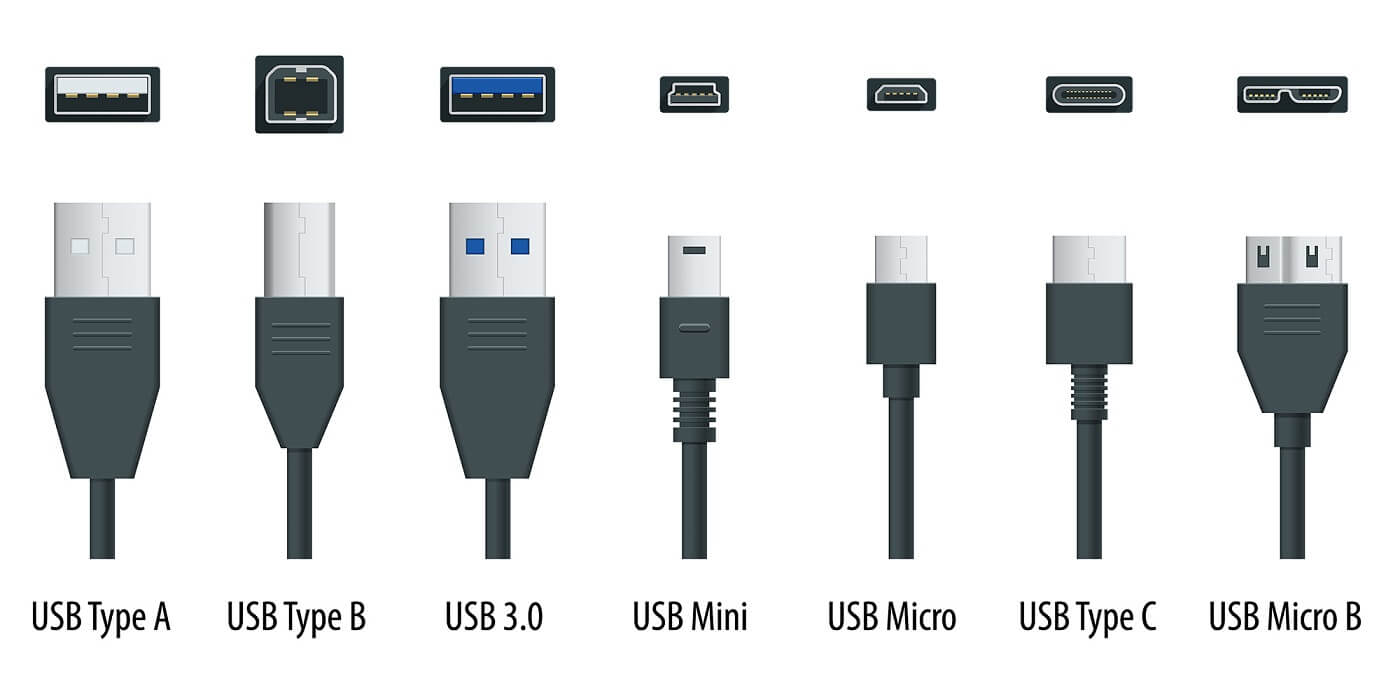
USB has accumulated a surprising number of physical connector formats over its lifetime. Here’s every type you’re likely to encounter:
USB Type-A
The classic rectangular plug. The most common USB connector in history. Blue = USB 3.x (5 Gb/s+), black or white = USB 2.0.
Found on: PCs, hubs, chargers, flash drives
USB Type-B
Square connector with bevelled top corners. Used on upstream devices. USB 3.0 Type-B adds an extra row of pins at the top.
Found on: Printers, external HDDs, scanners
USB Type-C
Reversible oval plug. Required for USB 3.2 Gen 2×2, USB4, and Thunderbolt. Supports video, power, and data over a single cable. Speed depends entirely on the host port.
Found on: Phones, laptops, tablets, modern PCs
Micro-USB
Compact connector for mobile devices. Micro-B is asymmetric and fragile. Micro-B SuperSpeed (USB 3.0) adds an extra connector block to the right side.
Found on: Legacy Android devices, power banks
Mini-USB
Predecessor to Micro-USB. Trapezoidal shape. USB 2.0 only. Officially deprecated but still found on older cameras and peripherals.
Found on: Cameras, older hard drives, MP3 players
Lightning / Thunderbolt
Apple’s proprietary connector (Lightning on older iPhones) and Intel’s high-speed standard (Thunderbolt, uses USB-C). Thunderbolt cables carry a lightning bolt logo.
Found on: Apple devices, high-end PC motherboards
4. USB Power Delivery — Charging Standards Explained
USB has evolved from a low-power data bus into the universal charging standard for almost everything. USB Power Delivery (USB PD) is the specification governing how much power a USB-C port can supply.
2.5W
USB 2.0 Standard
5V × 0.5A. Charges mice, keyboards, basic accessories.
4.5W
USB 3.x Standard
5V × 0.9A. Slower phone charging. Most USB-A ports.
18W
USB PD 2.0 / QC
Quick Charge compatible. Standard phone fast charge.
100W
USB PD 3.0
Up to 20V × 5A. Charges most laptops. Widely supported.
140W
USB PD 3.1 EPR
Extended Power Range. 28V × 5A. High-performance laptops.
240W
USB PD 3.1 Max
48V × 5A. Maximum USB PD spec. Needs EPR-rated cable.
~480W
USB PD 3.2 (Draft)
Upcoming revision targeting high-end desktop use cases.
💡 USB-C Cable Ratings Matter
Not all USB-C cables support all power and speed combinations. A cheap USB-C cable may only support USB 2.0 speeds and 5W charging. For USB4 40 Gb/s you need a certified active cable. For 240W EPR charging you need an EPR-rated cable. Always check the cable spec, not just the port.
Not all USB-C cables support all power and speed combinations. A cheap USB-C cable may only support USB 2.0 speeds and 5W charging. For USB4 40 Gb/s you need a certified active cable. For 240W EPR charging you need an EPR-rated cable. Always check the cable spec, not just the port.
5. USB4 vs Thunderbolt — What’s the Actual Difference?
USB4 was built directly on top of Intel’s Thunderbolt 3 specification, which Intel released royalty-free to the USB-IF. The result is significant overlap — but meaningful differences remain.
USB4 Gen 3×2 (40 Gb/s)
- No licensing fee — available on any manufacturer’s silicon
- Compatible with Thunderbolt 3 and 4 devices
- Supports PCIe tunneling, DisplayPort tunneling
- USB PD up to 240W supported
- Widely available on AMD, Intel, and ARM platforms
Thunderbolt 4 (40 Gb/s)
- Intel certification required — stricter compliance testing
- Mandates minimum PCIe bandwidth (32 Gb/s) — USB4 does not
- Requires daisy-chain support (up to 6 devices)
- Must support two 4K or one 8K display
- Guaranteed compatibility across certified devices
In practice: a Thunderbolt 4 port is a USB4 port with stricter guaranteed minimums. A USB4 port is not necessarily Thunderbolt 4 — PCIe bandwidth allocations vary by implementation. For external GPUs and NVMe enclosures, Thunderbolt 4 is the safer choice for guaranteed performance.
6. Real-World vs Theoretical Speeds
Theoretical bandwidth figures are rarely achieved in practice. Protocol overhead, encoding, cable quality, and drive controller limits all reduce real throughput. Here’s what to realistically expect:
| Standard | Theoretical | Real-World (Fast Drive) | Best Use Case |
|---|---|---|---|
| USB 2.0 | 480 Mb/s (60 MB/s) | ~35–40 MB/s | Keyboards, mice, webcams, chargers |
| USB 3.2 Gen 1 | 5 Gb/s (625 MB/s) | ~350–450 MB/s | Flash drives, USB HDDs, SD card readers |
| USB 3.2 Gen 2 | 10 Gb/s (1.25 GB/s) | ~800–950 MB/s | Fast SSDs, video capture, 10GbE docks |
| USB 3.2 Gen 2×2 | 20 Gb/s (2.5 GB/s) | ~1.6–1.9 GB/s | High-speed NVMe enclosures |
| USB4 Gen 3×2 | 40 Gb/s (5 GB/s) | ~3.0–4.0 GB/s | eGPU, fast NVMe RAID, 8K display output |
| USB4 Gen 4 | 80 Gb/s (10 GB/s) | ~7–9 GB/s | Next-gen NVMe enclosures, Thunderbolt 5 overlap |
7. Backwards Compatibility — What Works With What
USB is fully backwards compatible. A USB 3.2 Gen 2 port will always accept a USB 2.0 device; the connection simply negotiates down to the lower standard’s speed. This applies across all generations in both directions.
🔄 Compatibility Matrix
| Device | Port | Result |
|---|---|---|
| USB 2.0 flash drive | USB 3.2 Gen 2 (blue/red) port | Works — runs at USB 2.0 speed |
| USB 3.2 Gen 2 SSD | USB 2.0 (black) port | Works — limited to USB 2.0 speed |
| USB-C USB4 device | USB-C USB 3.2 Gen 2 port | Works — limited to 10 Gb/s |
| Thunderbolt 3 device | USB4 Gen 3×2 port | Full Thunderbolt 3 speeds |
| Thunderbolt 4 device | USB4 Gen 3×2 port | Works — USB4 speeds, no TB4 extras |
| USB-A device | USB-C port (with adapter) | Works — speed of whichever is slower |
| USB 2.0 Micro-B device | USB-C port (with adapter) | Works — USB 2.0 speed only |
8. How to Identify Your USB Port Speed
Without checking specs, USB ports can be identified by colour coding and logos — though manufacturers aren’t always consistent:
| Visual Cue | Likely Standard | Reliability |
|---|---|---|
| Black or white Type-A port | USB 2.0 | Usually reliable |
| Blue Type-A port | USB 3.x (5 Gb/s minimum) | Usually reliable |
| Red or teal Type-A port | USB 3.2 Gen 2 (10 Gb/s) or always-on charging | Varies by manufacturer |
| “SS” logo next to port | SuperSpeed = USB 3.x (5 Gb/s+) | Reliable |
| “SS 10” logo | USB 3.2 Gen 2 (10 Gb/s) | Reliable |
| ⚡ logo (Thunderbolt) | Thunderbolt 3 / 4 / 5 | Reliable |
| USB4 logo | USB4 (20–80 Gb/s) | Reliable |
| USB-C port with no logo | Could be anything — check spec sheet | Do not assume |
💡 Software Check
On Windows: open Device Manager → Universal Serial Bus controllers → right-click your USB hub → Properties → Details tab → “Bus reported device description” shows the negotiated speed. On macOS: Apple menu → About This Mac → System Report → USB shows each device and its negotiated speed tier.
On Windows: open Device Manager → Universal Serial Bus controllers → right-click your USB hub → Properties → Details tab → “Bus reported device description” shows the negotiated speed. On macOS: Apple menu → About This Mac → System Report → USB shows each device and its negotiated speed tier.
Frequently Asked Questions
Is USB4 the same as Thunderbolt 4?
Not exactly. USB4 is based on the same Thunderbolt 3 protocol, but Thunderbolt 4 adds stricter certification requirements — including guaranteed PCIe bandwidth minimums, daisy-chain support, and display output guarantees. A Thunderbolt 4 port is USB4 compliant, but not all USB4 ports are Thunderbolt 4.
Can I use a USB4 cable for USB 3.2?
Yes. USB4 cables are backwards compatible and will work with USB 3.2 and USB 2.0 devices. The connection will negotiate down to the lower speed. However, cheap USB-C cables marketed for USB 2.0 charging cannot run USB4 speeds — the cable spec matters, not just the connector.
Why does my USB-C port only charge but not transfer data?
Some USB-C ports — particularly on budget laptops and monitors — are wired solely for power delivery (USB PD) without a data connection. Others are USB 2.0 data-capable but nothing faster. Check your device’s spec sheet for the specific capabilities of each port.
Does USB4 support video output?
Yes. USB4 supports DisplayPort Alt Mode tunneling (DisplayPort 2.0 on USB4 Gen 3×2), enabling high-resolution display output through a single USB-C cable. USB4 Gen 4 adds DisplayPort 2.1 support, capable of driving 16K displays or multiple 4K/8K monitors simultaneously.
What USB standard do I need for an external NVMe SSD enclosure?
For a single NVMe SSD, USB 3.2 Gen 2 (10 Gb/s) is the practical minimum — it saturates most consumer SSDs. USB 3.2 Gen 2×2 (20 Gb/s) or USB4 (40 Gb/s) removes the bottleneck entirely for PCIe Gen 4 drives and RAID configurations. USB 2.0 or Gen 1 will severely limit any fast SSD.
Final Verdict
USB naming is genuinely confusing, but the underlying technology is logical once you map it out. The core hierarchy is simple: USB 2.0 for basic peripherals, USB 3.2 Gen 2 for fast storage, USB4 for external GPUs and next-generation enclosures, and Thunderbolt 4/5 when you need certified guarantees.
When buying cables or hubs, always check the rated speed — the USB-C connector alone tells you nothing about the bandwidth. And if a product listing simply says “USB-C” with no generation number, assume USB 2.0 speeds until proven otherwise.

Jaeden Higgins is a tech review writer associated with DigitalUpbeat. He contributes content focused on PC hardware, laptops, graphics cards, and related tech topics, helping readers understand products through clear, practical reviews and buying advice.