Book Appointment Now


Thermal Paste
Thermal Paste: What It Does, When It Matters
Heat Flow Through the CPU Cooling Stack
Heat always moves upward through the cooling chain:
CPU Die → Internal TIM → IHS → Thermal Paste → Cooler Cold Plate → Heat Pipes → Heatsink Fins → Air (via fan)
This pathway ensures that the heat generated by the CPU is removed quickly and released into the surrounding air, preventing overheating and maintaining stable performance.
Quick Summary: Thermal paste fills the microscopic surface imperfections between your CPU’s heat spreader and your cooler’s cold plate. Without it, those invisible air pockets act as insulation — and air is a terrible conductor of heat. The right paste, applied correctly, can mean a 10–15°C difference in CPU temperature under load. A bad application or degraded paste can push your CPU to thermal throttle and silently reduce performance.
⚡ Key Takeaways
- Metal surfaces look smooth but are microscopically rough — thermal paste fills those gaps, which air cannot
- A quality paste vs. a bad application can swing CPU temps by 10–20°C under full load
- Liquid metal compounds offer the best thermal performance but are electrically conductive — one slip can kill hardware
- Most pastes need replacing every 3–5 years as they dry out and lose conductivity
- Pre-applied paste on boxed coolers is usually adequate for stock operation — upgrade it for overclocking or silence
1. Why Thermal Paste Exists — The Physics
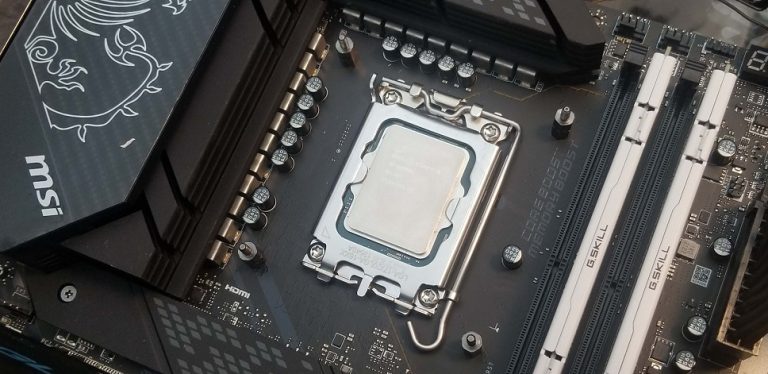
At the microscopic level, no metal surface is truly flat. Both the CPU’s Integrated Heat Spreader (IHS) and the cooler’s cold plate have peaks, valleys, and tool marks invisible to the naked eye. When pressed together, these surfaces only touch at their highest points — meaning a significant portion of the contact area is actually filled with air.
Air has a thermal conductivity of roughly 0.024 W/m·K. A good thermal paste has thermal conductivity of 4–14 W/m·K — up to 580 times more conductive than air. Every air pocket between the CPU and cooler is a tiny insulating barrier slowing heat transfer from the die to the heatsink fins where airflow can carry it away.
💡 What “W/m·K” actually means
Thermal conductivity (W/m·K) measures how many watts of heat energy flow through a 1-metre-thick material per degree Celsius of temperature difference. Higher numbers mean faster heat transfer. Copper is ~400 W/m·K; quality thermal paste is 4–14 W/m·K; air is 0.024 W/m·K. Paste isn’t replacing the metal — it’s replacing the air gaps between metals.
Thermal conductivity (W/m·K) measures how many watts of heat energy flow through a 1-metre-thick material per degree Celsius of temperature difference. Higher numbers mean faster heat transfer. Copper is ~400 W/m·K; quality thermal paste is 4–14 W/m·K; air is 0.024 W/m·K. Paste isn’t replacing the metal — it’s replacing the air gaps between metals.
Thermal paste doesn’t need to be thick or deeply conductive on its own. Its job is purely to displace air from the contact interface. The cooler does the actual work of moving heat. A thin, uniform layer with no bubbles is optimal — excess paste doesn’t help and can actually impede contact pressure.
2. Temperature Impact — How Much Does It Actually Matter?
The honest answer: it depends on your cooler and CPU. A 65W CPU with a budget air cooler on a mild workload may see a 3–5°C swing between a great and a poor application. A 253W Intel Core i9 or Ryzen 9 with a 360mm AIO under Cinebench load can see a 15–20°C difference — which is the margin between stable operation and thermal throttling.
Approximate CPU Delta-T Under Sustained Load (same cooler, same CPU, 200W TDP)
Liquid Metal (LM)
~62°C — best possible
Premium Paste (e.g. Kryonaut)
~67°C
Good Paste (e.g. MX-4)
~70°C
Stock / Pre-applied Paste
~75°C
Old / Dried-out Paste
~84°C — throttling likely
No Paste (dry mount)
90°C+ — immediate throttle / shutdown
⚠️ Thermal Throttling — The Silent Performance Killer:
Modern CPUs automatically reduce clock speed and voltage when they approach their maximum safe temperature (typically 95–100°C for Intel/AMD). A CPU running at 95°C isn’t “just hot” — it is actively running slower than it should be. Degraded thermal paste is one of the most common causes of unexplained performance drops in 3–5 year old systems.
Modern CPUs automatically reduce clock speed and voltage when they approach their maximum safe temperature (typically 95–100°C for Intel/AMD). A CPU running at 95°C isn’t “just hot” — it is actively running slower than it should be. Degraded thermal paste is one of the most common causes of unexplained performance drops in 3–5 year old systems.
3. Types of Thermal Paste — From Budget to Exotic
Thermal compounds come in several distinct categories, each with trade-offs between thermal performance, safety, ease of use, and longevity.
Silicone-Based
~1–3 W/m·K
The most basic formulation. Often pre-applied on OEM and budget coolers. Non-conductive, safe to use, and long shelf life. Performance well below dedicated pastes.
Use when: Budget build, stock cooler, mild workloads
Carbon / Graphite
~4–6 W/m·K
Carbon-based compounds like Arctic MX-4 and MX-6. Non-conductive, non-capacitive, and electrically safe. Excellent value and easy to apply. The everyday default for most builds.
Use when: Daily driver, gaming PC, standard OC
Phase-Change
~4–8 W/m·K
Solid at room temperature, melts to liquid on first heat cycle and fills the interface. Excellent long-term stability since the material self-reflows if it cracks. Often used in laptops. Harder to remove cleanly.
Use when: Laptops, set-and-forget builds, re-paste averse
Thermal Pads
~6–17 W/m·K
Pre-cut compressible sheets. Not used for CPUs (too thick for the gap), but standard for GPU VRAM, VRMs, M.2 SSDs, and other components requiring a fixed-thickness interface. Easy to handle and cut to size.
Use when: GPU repaste, M.2 SSD heatsinks, VRM cooling
4. How to Apply Thermal Paste — Methods Compared
The application method matters almost as much as the paste itself. The goal is a thin, complete, bubble-free layer covering the entire IHS contact area after the cooler is mounted.
1
Clean the Surface
Remove all old paste with isopropyl alcohol (90%+) and a lint-free cloth or coffee filter. Both surfaces — IHS and cold plate — must be clean and dry before re-application.
2
Apply the Paste
Place a pea-sized dot (roughly 3–4mm) in the centre of the IHS. Do not pre-spread. The cooler’s mounting pressure will distribute it. Use slightly more for large-die CPUs like the i9-14900K or Threadripper.
3
Mount Evenly
Lower the cooler straight down without sliding. Tighten screws in a diagonal cross-pattern (not circular) to ensure even pressure across the IHS. Over-tightening can crack the CPU package — stop when firm.
4
Verify Coverage
After a brief test boot, optionally remove the cooler to verify the paste spread. It should cover the full IHS contact area with no bare spots or excess squeezing over the edges onto the socket.
| Application Method | Best For | Risk | Verdict |
|---|---|---|---|
| Pea / dot (centre) | Most desktop CPUs | Low — pressure spreads it naturally | Recommended default |
| Rice grain (centre) | Small-die CPUs (e.g. Ryzen desktop) | Low — smaller amount, less overflow risk | Good for compact dies |
| Thin pre-spread (card/spatula) | Large-die CPUs (HEDT, Threadripper) | Medium — risk of air bubbles if spread unevenly | Use for large IHS only |
| X pattern | Multi-die chiplet CPUs | Low — targets individual chiplet locations | Good for Zen 3 / Zen 4 |
| Too much paste | — | High — excess can overflow onto socket, capacitors | Avoid |
⚠️ Liquid Metal Application Rules:
Liquid metal requires masking the surrounding area with tape before application to prevent spreading onto the PCB or socket. Apply with a cotton swab, spread thinly across the entire IHS. Never use on aluminium cold plates — gallium alloys corrode aluminium. Copper and nickel-plated surfaces only.
Liquid metal requires masking the surrounding area with tape before application to prevent spreading onto the PCB or socket. Apply with a cotton swab, spread thinly across the entire IHS. Never use on aluminium cold plates — gallium alloys corrode aluminium. Copper and nickel-plated surfaces only.
5. When to Replace Thermal Paste
Thermal paste doesn’t last forever. Over time, the carrier oil separates from the thermal compounds, the material dries and cracks, and conductivity degrades. The contact interface that was once filled becomes partially air-filled again.
🕐 Thermal Paste Lifespan by Type
| Paste Type | Expected Lifespan | Signs of Degradation |
|---|---|---|
| Silicone-based (OEM) | 1–3 years | Rising idle temps, throttling under load |
| Carbon / Graphite (e.g. MX-4) | 5–8 years | Gradual 5–10°C temp creep over time |
| Metal Oxide (e.g. Kryonaut) | 3–5 years (dry climates faster) | Visible cracking on removal, elevated temps |
| Liquid Metal | 5–10 years | Pump-out effect — migrates off-center over years |
| Phase-Change Pads | 7–10 years | Rarely needs replacement unless physically damaged |
Beyond age, always replace thermal paste after:
Always Replace Paste When…
- Removing and reinstalling the CPU cooler for any reason
- System is 3+ years old with original paste and temps rising
- Experiencing unexpected thermal throttling or shutdowns
- Upgrading from stock to aftermarket cooler
- Delidding a CPU (inner TIM replacement)
- Repasting a laptop that runs hot after 2–3 years
No Need to Replace If…
- Cooler has never been removed and temps are nominal
- System is under 2 years old with quality paste
- Using phase-change pads (self-healing on heat cycles)
- Liquid metal applied less than 5 years ago and temps stable
- Pre-applied paste on a new boxed CPU cooler — use it first
6. Thermal Paste vs. GPU — Same Rules Apply
Everything above applies equally to GPUs. Graphics cards have a GPU die (or multiple dies on modern high-end cards), VRAM chips, and VRM components — all of which use thermal interface materials to transfer heat to the heatsink.
Factory GPU thermal paste tends to degrade faster than CPU paste because GPU die temperatures cycle more aggressively during gaming sessions. A 3–4 year old GPU that runs unexpectedly hot under load is a strong candidate for a repaste. VRAM and VRM cooling is handled by thermal pads of specific thickness — these must be matched precisely when replaced.
💡 GPU Repaste Caution
GPU repasting voids your warranty and requires disassembling the cooler assembly. Thermal pad thickness varies by model — using incorrect thickness can leave components under-cooled. Research your specific GPU model’s pad dimensions before purchasing replacements. A 1mm pad on a component requiring 1.5mm is worse than the original dried-out factory pad.
GPU repasting voids your warranty and requires disassembling the cooler assembly. Thermal pad thickness varies by model — using incorrect thickness can leave components under-cooled. Research your specific GPU model’s pad dimensions before purchasing replacements. A 1mm pad on a component requiring 1.5mm is worse than the original dried-out factory pad.
7. Popular Thermal Pastes — Quick Reference
| Product | Type | Thermal Conductivity | Electrically Conductive? | Best For |
|---|---|---|---|---|
| Arctic MX-6 | Carbon | 8.5 W/m·K | No | Best all-rounder for daily builds |
| Arctic MX-4 | Carbon | 8.5 W/m·K | No | Proven, cheap, excellent longevity |
| Noctua NT-H2 | Metal Oxide | ~8.9 W/m·K | No | Premium air cooler builds |
| Thermal Grizzly Kryonaut | Metal Oxide | 12.5 W/m·K | No | High-TDP CPUs, enthusiast OC |
| Thermal Grizzly Kryonaut Extreme | Metal Oxide | 14.2 W/m·K | No | Extreme OC, large-die flagship CPUs |
| Thermal Grizzly Conductonaut | Liquid Metal | 73 W/m·K | Yes — dangerous | Delidded CPUs, expert users only |
| Dowflake / Generic Silicone | Silicone | ~1.5 W/m·K | No | Stock OEM builds, light workloads |
8. Quick-Start Checklist — Applying or Replacing Paste
| # | Step | Notes |
|---|---|---|
| 1 | Power down, unplug, discharge static (touch case chassis) | Safety first |
| 2 | Remove the cooler. Twist gently — dried paste can bond | Don’t yank straight up |
| 3 | Clean both surfaces with IPA 90%+ and lint-free cloth | Required |
| 4 | Apply pea-sized dot to centre of IHS | Default method |
| 5 | Lower cooler straight down, tighten screws in diagonal cross-pattern | Even pressure |
| 6 | Boot system and check temperatures in HWiNFO64 or HWMonitor | Verify result |
| 7 | Run a stress test (Cinebench, OCCT) for 10 minutes to confirm stable temps | Validate |
Frequently Asked Questions
Does more thermal paste mean better cooling?
No — the opposite is often true. Excess paste can prevent the metal surfaces from making proper contact, introduce air bubbles, and overflow onto surrounding components. A pea-sized dot in the centre is correct. The cooler’s mounting pressure spreads it to the ideal thickness automatically.
Is it safe to use the pre-applied paste on a new CPU cooler?
Yes, for most use cases. Pre-applied paste on boxed coolers is sufficient for stock-speed operation at normal workloads. If you’re overclocking, running a high-TDP processor, or building a quiet PC where lower fan speeds matter, upgrading to a quality paste like Arctic MX-4 is worth it.
Can I use toothpaste, butter, or other household materials in a pinch?
No. Toothpaste, butter, and similar materials have extremely low thermal conductivity, poor surface adhesion, and will degrade rapidly — often corrosively. In tests, toothpaste produces temperatures indistinguishable from a dry mount. Use actual thermal compound; a syringe of Arctic MX-4 costs under $10.
How do I know if my thermal paste has degraded?
The clearest sign is gradually rising CPU temperatures over months or years without a change in workloads. Compare idle and load temperatures to when the system was new. If your CPU now peaks 10–15°C higher under the same load, degraded paste is a likely cause. Also check the paste visually on removal — it should look creamy, not cracked, chalky, or separated into solids and oil.
Does thermal paste expire before use?
Yes. Most pastes list a shelf life of 2–5 years in an unopened syringe. Degraded paste in the tube can separate or dry out before application. Check the manufacturer’s expiry date; older tubes that have been sitting in a drawer for years should be replaced rather than trusted for a fresh build.
Final Verdict
Thermal paste is one of the cheapest, most impactful maintenance steps in PC hardware. A $7 tube of Arctic MX-4, properly applied, can drop CPU temperatures by 8–15°C versus degraded stock paste — potentially recovering full boost clock behaviour in a system that’s been silently throttling for years.
For new builds, use what came with your cooler and revisit in 3–4 years. For existing systems running hot, a repaste is the first thing to try before upgrading the cooler. And if you’re building a high-TDP system or planning to overclock, spend the extra few pounds on Kryonaut or MX-6 — the temperature margin is worth it.
CPU Cooler Guide · Thermal Management · PC Maintenance · DigitalUpBeat

Jaeden Higgins is a tech review writer associated with DigitalUpbeat. He contributes content focused on PC hardware, laptops, graphics cards, and related tech topics, helping readers understand products through clear, practical reviews and buying advice.