Book Appointment Now


What is KVM
What is KVM (Keyboard, Video, and Mouse) and How Is It Used? A Complete Guide for 2026
Quick Summary
KVM stands for Keyboard, Video, and Mouse — a technology that allows you to control multiple computers or servers using a single set of peripherals. Whether you’re managing a home office with a laptop and desktop, or administering hundreds of servers in a data center, KVM switches eliminate desk clutter, reduce equipment costs, and streamline workflows. Modern KVM solutions range from simple desktop switches to sophisticated KVM over IP systems that enable remote BIOS-level access from anywhere in the world.
Understanding KVM Technology: The Basics
Imagine sitting at your desk with two computers — a work laptop and a personal gaming PC. Without a KVM solution, you’d need two monitors, two keyboards, and two mice, creating a tangled mess of cables and constant physical switching between stations. A KVM switch solves this problem by acting as a central hub that connects your single keyboard, monitor, and mouse to multiple computers simultaneously.
At its core, a KVM switch creates a physical bridge between your input devices (called the console) and your target computers (CPUs or servers). When you want to switch from one computer to another, you simply press a button on the switch, use a keyboard hotkey combination, click your mouse wheel, or select from an on-screen display menu. The KVM instantly routes your keyboard, video, and mouse signals to the selected computer.
The technology has evolved significantly from the mechanical switches of the 1990s. Early KVMs physically broke circuit connections when switching, causing computers to “forget” connected peripherals and experience lag when reconnecting. Modern KVMs use advanced signal emulation technology to maintain constant virtual connections, ensuring seamless transitions without driver re-detection or window rearrangement.
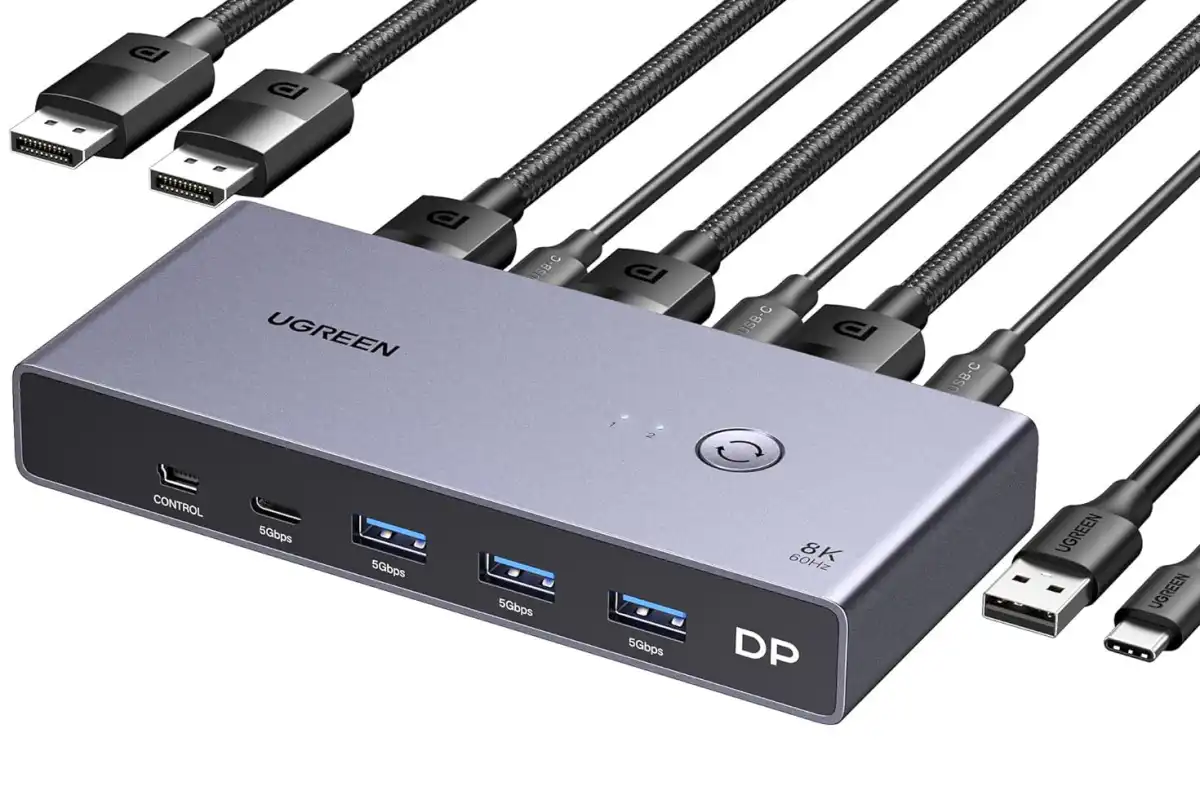
How Modern KVM Switches Work: Signal Emulation Explained
Modern KVM switches rely on two critical emulation technologies to deliver smooth, instant switching:
USB Emulation Technology
When you connect multiple computers to a KVM switch, the device maintains a constant “virtual” mouse and keyboard signal for every connected computer — even when you’re not actively using that machine. This means each computer believes it has an active keyboard and mouse connected at all times. When you switch to a different computer, there’s no delay while the operating system re-detects drivers or initializes peripherals. The transition is instantaneous and transparent.
EDID Emulation for Video
Extended Display Identification Data (EDID) emulation is equally important for maintaining display stability. Your monitor communicates its specifications (resolution, refresh rate, color capabilities) to connected computers through EDID information. Without emulation, switching between computers would cause each system to re-detect the monitor, often resulting in windows resizing, applications moving to different screens, or display settings resetting.
Modern KVMs store your monitor’s EDID profile and continuously feed this information to all connected computers. This ensures that whether you’re working on your laptop or desktop, both systems maintain consistent display configurations, and your windows stay exactly where you left them.
Types of KVM Switches: Finding the Right Solution
Choosing the wrong type of KVM switch is the leading cause of user frustration. The market offers several distinct categories designed for specific use cases, from home offices to enterprise data centers.
| Type | Best For | Key 2026 Features |
|---|---|---|
| Standard Desktop KVM | Home Office, Light Gaming | HDMI 2.1, Hotkey switching, Audio mixing |
| USB-C Hybrid KVM | Laptops (MacBooks, Dell XPS) | Single cable connection (Video + Data + Charging), acts as Dock + KVM |
| High-Refresh Gaming KVM | Esports, Hardcore Gaming | DisplayPort 2.1, 240Hz/360Hz support, G-Sync/FreeSync compatibility |
| Multi-Viewer KVM | Security, Day Trading | Picture-in-Picture (PiP), splits one monitor into 4 quadrants |
| KVM over IP | Data Centers, Remote Management | Remote BIOS access, AES-256 encryption, browser-based control |
Standard Desktop KVM Switches
Standard desktop KVM switches are the most common type for home and small office use. These devices typically support 2-4 computers and offer HDMI or DisplayPort connections. The TRENDnet TK-441DP represents an excellent budget-friendly option, allowing control of up to four DisplayPort computers with 4K 60Hz support, full audio capabilities, and a wired remote switch for easy selection.
For users with dual-monitor setups, the TESmart HCK402-P offers dual-monitor support for two computers with multiple switching options including hotkeys, IR remote, and front-panel buttons. These switches eliminate the need for duplicate peripherals while maintaining high-resolution video quality.
USB-C Hybrid KVM Solutions
Modern laptops like MacBooks and Dell XPS models have embraced USB-C as their primary connectivity standard. USB-C hybrid KVM switches cater specifically to these devices by transmitting video, data, and charging power through a single cable. This eliminates the need for separate docking stations while providing seamless switching between laptops and desktop computers.
High-Refresh Gaming KVMs
Competitive gamers and content creators require KVM switches that won’t compromise performance. High-refresh KVMs support DisplayPort 2.1 and HDMI 2.1 standards, delivering 240Hz or even 360Hz refresh rates with G-Sync and FreeSync compatibility. The Level1Techs Dual Monitor KVM Switch supports up to 4K at 120Hz or 8K at 30Hz with 10Gbps USB-C interfaces, making it ideal for high-performance gaming setups.
KVM Over IP: Remote Management Revolution
While traditional KVM switches require physical proximity to connected computers, KVM over IP technology has revolutionized remote management by transmitting keyboard, video, and mouse signals over network connections. This allows IT administrators to control servers from anywhere with internet access — whether they’re in the next room or on another continent.
How KVM Over IP Works
KVM over IP devices digitize video and USB signals into data packets transmitted over Local Area Networks (LAN) or the Internet. Unlike software-based remote desktop solutions that require a functioning operating system, KVM over IP provides BIOS-level access. This means administrators can troubleshoot boot failures, access firmware settings, install operating systems, and recover corrupted systems remotely — capabilities impossible with traditional remote desktop software.
The technology supports several deployment models:
- LAN-only setups: Restricted local network control within a single site
- WAN setups: Extended control across an organization’s internal network
- VPN connections: Traditional encrypted tunneling for remote work
- Zero Trust networks: Modern solutions using Tailscale, ZeroTier, or NetBird for secure connectivity without full VPN overhead
Types of KVM Over IP Solutions
| Type | Connection | Receiver Required | Best Use Case |
|---|---|---|---|
| KVM over IP Extender | One-to-one | Yes | Local workspace tidying, short distances |
| Matrix Systems | Many-to-many | Yes (per station) | Enterprise control rooms, large data centers |
| Single-Port KVM over IP | One-to-many | No — browser only | Out-of-band server management, SMBs, labs |
Single-port KVM over IP solutions like TinyPilot, Raritan Dominion KX III, and Adderlink have gained popularity among small to mid-sized businesses because they require no specialized receiver hardware. Users connect through standard web browsers, eliminating client software installation while providing BIOS-level control, virtual media mounting for OS installation, and multi-user session support.
Key Benefits of Implementing KVM Solutions
Organizations and individuals adopt KVM technology for compelling reasons that extend far beyond simple cable reduction:
Space Optimization and Clutter Reduction
A typical dual-computer setup without KVM requires two monitors, two keyboards, and two mice — consuming valuable desk real estate and creating visual chaos. KVM switches consolidate everything into one clean workspace. For data centers, this translates to eliminating hundreds of keyboards and monitors from server racks, dramatically improving airflow and maintenance access.
Significant Cost Savings
Beyond the obvious hardware savings (eliminating duplicate monitors, keyboards, and mice), KVM solutions reduce IT management overhead. Fewer devices mean fewer points of failure, reduced maintenance contracts, and lower electricity consumption. For enterprise environments, the reduced equipment footprint can even translate to lower cooling costs and optimized data center space utilization.
Enhanced Productivity and Workflow Efficiency
Switching between computers using a KVM takes seconds compared to the physical movement and mental context-switching required when using separate peripherals. Multi-viewer KVMs take this further by displaying multiple computers simultaneously on one screen through picture-in-picture modes — invaluable for day traders, security operators, and developers who need to monitor multiple systems concurrently.
Enterprise-Grade Remote Management
For IT teams, KVM over IP enables centralized management of geographically distributed infrastructure. A single administrator can support servers across multiple data centers without travel costs or on-site visits. This capability became essential during the remote work transformation, allowing IT teams to maintain critical infrastructure regardless of physical location.
Security and Safety Advantages
KVM over IP allows access to computers in hazardous environments — hospitals, factories, power plants, or military installations — without risking personnel safety or compromising physical security. Advanced solutions like Barco CTRL integrate zero-trust authentication, certificate-based encryption with mTLS, and comprehensive audit logging to ensure secure access control.
Choosing the Right KVM Switch: Essential Factors
Selecting the appropriate KVM switch requires careful consideration of your specific needs. Use this comprehensive checklist to evaluate options:
KVM Selection Checklist
- Number of Computers: How many systems do you need to control? (2, 4, 8, or more?)
- Monitor Configuration: Single, dual, or triple monitor support required?
- Video Standards: HDMI, DisplayPort, USB-C, or VGA connections?
- Resolution Requirements: 1080p, 4K 60Hz, or high-refresh 144Hz+ gaming?
- Peripheral Support: Do you need USB hub functionality for printers, storage, or audio?
- Remote Access: Is local-only switching sufficient, or do you need KVM over IP capabilities?
- Switching Method: Physical buttons, hotkeys, on-screen display, or remote control?
- Audio Needs: Do you share speakers or microphones between computers?
- Future Expansion: Will you add more computers later? Look for daisy-chain support.
- Security Requirements: For enterprise use, ensure AES-256 encryption and authentication features.
Pro Tips for Optimal KVM Performance
Pro Tip: When selecting a gaming KVM, verify that it explicitly supports your monitor’s adaptive sync technology (G-Sync or FreeSync). Some KVMs strip these signals, causing screen tearing during gameplay.
Pro Tip: For home office setups with laptops, prioritize USB-C hybrid KVMs that support Power Delivery (PD) charging. This single-cable solution reduces desk clutter while keeping your laptop charged.
Pro Tip: Enterprise buyers should evaluate the total cost of ownership, not just the initial purchase price. Matrix KVM systems have higher upfront costs but lower per-port expenses when scaling to hundreds of servers.
Common KVM Applications and Use Cases
Home Office Productivity
Remote workers increasingly use separate personal and work computers. A desktop KVM switch allows seamless transitions between these systems without sacrificing ergonomics or desk space. Graphic designers and video editors particularly benefit from switching between rendering workstations and client presentation laptops instantly.
Software Development and Testing
Developers often maintain multiple machines for different operating systems or testing environments. KVM switches enable quick testing across Windows, Linux, and macOS systems using the same peripherals, streamlining cross-platform development workflows.
Data Center and Server Management
Enterprise data centers deploy KVM over IP switches to manage thousands of servers across multiple racks. High-density switches like the Raritan Dominion KX III support up to 64 servers per unit with BIOS-level remote access, virtual media support for OS installations, and smart card authentication for security compliance.
Broadcast and Control Rooms
Broadcast studios and mission-critical control rooms require instant access to multiple isolated networks without security compromise. Advanced solutions allow operators to access sources from multiple segregated networks on a single canvas while maintaining complete network isolation at the infrastructure level.
Industrial and IoT Device Management
KVM over IP enables remote management of unattended IoT devices, digital signage, and industrial control systems. Technicians can troubleshoot kiosks, manufacturing equipment, and edge computing devices without dispatching personnel to remote locations.
Installation and Setup Best Practices
Setting up a KVM switch is generally straightforward, but following best practices ensures optimal performance:
- Cable Quality Matters: Use high-quality cables rated for your resolution and refresh rate. For 4K 60Hz or high-refresh gaming, certified Premium High Speed HDMI or DisplayPort 1.4 cables are essential.
- Power Considerations: Some KVM switches draw power from connected computers, while others require external adapters. Ensure your setup can provide adequate power, especially when connecting multiple high-power USB devices.
- EDID Learning: If your KVM supports EDID learning (storing monitor profiles), configure this during initial setup to prevent display issues when switching.
- Firmware Updates: Check for firmware updates from the manufacturer before deployment. These updates often resolve compatibility issues and add features.
- Network Configuration (KVM over IP): For remote access solutions, configure static IP addresses or DHCP reservations to ensure consistent connectivity. Implement VLANs or VPNs for security isolation.
⚠️ Important Warning
Never expose KVM over IP devices directly to the public internet without proper security measures. Always use VPNs, zero-trust networks, or at minimum, strong authentication and TLS encryption. Exposed KVM devices provide BIOS-level access to systems, making them high-value targets for attackers.
The Future of KVM Technology
KVM technology continues evolving to meet modern computing demands. Several trends are shaping the future of keyboard, video, and mouse switching:
AI and Automation Integration: As artificial intelligence and automation expand, remote management becomes critical for maintaining edge devices and IoT infrastructure. KVM over IP provides the foundational access needed for automated troubleshooting and maintenance routines.
Cloud and Virtual Machine Management: KVM capabilities increasingly extend to virtual machines and cloud instances, providing consistent management interfaces across physical and virtual infrastructure.
Enhanced Security Architectures: Zero-trust security models are becoming standard in enterprise KVM deployments, with certificate-based authentication, micro-segmentation, and comprehensive audit trails replacing traditional password-based access.
USB4 and Thunderbolt Integration: Next-generation KVM switches will leverage USB4 and Thunderbolt 4 standards, offering 40Gbps bandwidth for single-cable video, data, and power delivery across multiple 4K displays.
Frequently Asked Questions About KVM Technology
What is the difference between a KVM switch and KVM over IP?
A KVM switch is a local hardware device that allows you to control multiple computers using a single keyboard, monitor, and mouse from a nearby location (typically within cable reach). KVM over IP extends this concept by transmitting signals across networks, enabling remote access from anywhere with internet connectivity. While standard KVMs require physical proximity, KVM over IP solutions provide BIOS-level access to servers across the globe.
Will a KVM switch affect gaming performance or introduce input lag?
High-quality KVM switches designed for gaming introduce negligible latency (typically under 1ms). However, budget KVMs or those not rated for high refresh rates may cause input lag or strip adaptive sync signals (G-Sync/FreeSync). For competitive gaming, invest in specialized high-refresh KVMs with DisplayPort 2.1 or HDMI 2.1 support that explicitly advertise gaming compatibility and low latency.
Can I use a KVM switch with wireless keyboards and mice?
Most modern KVM switches support wireless USB peripherals, but compatibility varies. Some wireless devices with proprietary software (like Logitech’s Logi Bolt or Razer’s Hyperspeed) may lose advanced features when routed through a KVM. For best results, use wireless receivers that connect via standard USB HID protocols, or consider KVMs with dedicated USB 3.0 ports for wireless receiver placement close to peripherals.
Is KVM over IP secure for enterprise use?
Yes, when properly configured, KVM over IP meets enterprise security standards. Look for devices offering AES-256 encryption, TLS 1.3 for data transmission, multi-factor authentication, role-based access controls, and comprehensive audit logging. Implement these devices behind VPNs or zero-trust networks rather than exposing them directly to the internet. Reputable manufacturers like Raritan, Vertiv, and Lantronix maintain ISO 27001 certifications and undergo regular penetration testing.
Can I install an operating system remotely using KVM over IP?
Absolutely. One of the primary advantages of KVM over IP is the ability to mount virtual media (ISO files) and perform complete OS installations remotely. This includes accessing BIOS/UEFI settings, formatting drives, and installing operating systems as if you were physically present. Most enterprise KVM over IP solutions support virtual media mounting up to 2TB ISO files, while entry-level devices may have size limitations.
Conclusion: Is a KVM Switch Right for You?
KVM technology has evolved from simple mechanical switches to sophisticated remote management platforms essential for modern computing environments. Whether you’re a home user seeking to declutter your desk, a gamer wanting seamless multi-system control, or an IT administrator managing global infrastructure, there’s a KVM solution tailored to your needs.
The key is selecting the right type for your specific use case. Desktop users benefit from standard HDMI or USB-C KVMs, while enterprises require KVM over IP for remote BIOS-level access. Gaming enthusiasts should prioritize high-refresh DisplayPort switches, and security-conscious organizations need matrix systems with zero-trust architecture.
By consolidating peripherals and enabling remote management, KVM switches deliver immediate cost savings, improved productivity, and enhanced security. As remote work and distributed computing continue growing, KVM over IP capabilities transition from convenience to necessity — ensuring that critical systems remain accessible and manageable regardless of physical location.
Ready to Upgrade Your Setup?
Explore our comprehensive guides to find the perfect KVM solution for your specific needs. Whether you’re building a home office, optimizing a gaming station, or managing enterprise infrastructure, we have detailed recommendations to help you make the right choice.
Related Articles You Might Enjoy
- The Ultimate Guide to Laptop Docking Stations — Expand your laptop’s connectivity while maintaining KVM functionality
- Best Monitors for Gaming Builds — Pair your KVM switch with the perfect high-refresh display
- USB 3.0 to USB 4.0 Explained — Understand the connectivity standards powering modern KVM solutions
- Top HDMI Switches for 4K and 8K Gaming — Compare KVM alternatives for video-only switching
- How to Use Your Laptop as a Monitor — Alternative display solutions for multi-device setups

Jaeden Higgins is a tech review writer associated with DigitalUpbeat. He contributes content focused on PC hardware, laptops, graphics cards, and related tech topics, helping readers understand products through clear, practical reviews and buying advice.