
Book Appointment Now

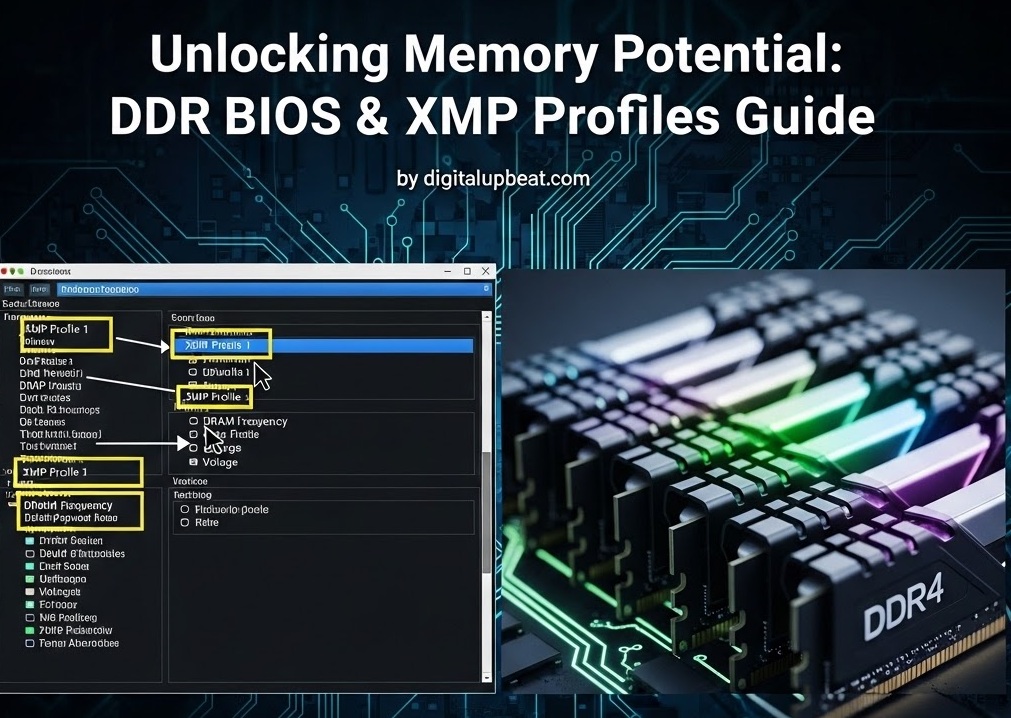
Unlocking Memory Potential: DDR BIOS & XMP Profiles
Unlocking Memory Potential: Understanding DDR BIOS Settings and XMP Profiles
Quick Summary: Most RAM kits boot at a fraction of their rated speed because the BIOS defaults to a conservative JEDEC profile. Enabling XMP (Intel) or EXPO (AMD) loads a pre-validated overclock recipe stored on the stick itself — giving you the performance you actually paid for. This guide explains every setting you need to know.
⚡ Key Takeaways
- A DDR5-6400 kit boots at DDR5-4800 by default without XMP enabled
- XMP and EXPO are manufacturer-validated profiles stored on the RAM’s SPD chip
- Primary timings (CL, tRCD, tRP) control latency; frequency controls bandwidth
- Always stress test with TM5 Extreme1 after enabling any XMP/EXPO profile
1. JEDEC vs. XMP — The Default Problem
Every stick of RAM ships with a baseline JEDEC specification — a standardized operating profile mandated by the Joint Electron Device Engineering Council. It is a conservative, universally safe frequency and voltage pairing that virtually every motherboard accepts without complaint.
The problem: it almost certainly isn’t what’s printed on the box. A kit marketed as DDR5-6400 will boot at DDR5-4800 by default on most platforms — roughly 25–35% fewer operations per second than what you paid for.
💡 Why does this happen?
BIOS firmware defaults to JEDEC for maximum compatibility across thousands of motherboard and CPU combinations. The board has no way to know your RAM is a premium kit without reading its stored XMP profile first.
BIOS firmware defaults to JEDEC for maximum compatibility across thousands of motherboard and CPU combinations. The board has no way to know your RAM is a premium kit without reading its stored XMP profile first.
XMP (Extreme Memory Profile) is Intel’s solution to this gap. It’s a small data structure stored in the SPD (Serial Presence Detect) chip on the RAM module itself, containing pre-validated overclock recipes — exact frequency, voltage, and timing triplets — that the motherboard can read and apply at POST.
AMD’s equivalent is called EXPO (Extended Profiles for Overclocking), introduced alongside Zen 4 / AM5. It functions identically but is tuned for AMD’s memory controller architecture. Most modern DDR5 kits ship with both XMP and EXPO profiles on the same SPD chip.
XMP / EXPO Enabled
- Full rated speed and bandwidth
- Manufacturer-validated stability
- One-click setup in BIOS
- Better gaming and productivity performance
JEDEC Default (No XMP)
- 25–35% below rated frequency
- Wasted money on premium kits
- Sub-optimal latency and bandwidth
- No benefit from high-spec memory
2. Reading the Numbers — Memory Timings Explained
Memory timings look like a string of numbers: 32-38-38-76. These are clock cycle delays — smaller numbers mean faster response. Understanding them is essential to evaluating any memory profile.
Primary Timing Parameters — DDR5 Example (CL34-44-44-96)
CL
34 cycles — delay between read command and data output
tRCD
44 cycles — row activation to column access
tRP
44 cycles — precharge before new row can be opened
tRAS
96 cycles — minimum row active time
| Parameter | Full Name | Impact | Priority |
|---|---|---|---|
CL (tCL) |
CAS Latency | Latency for every random read — highest single-parameter impact | Critical |
tRCD |
RAS to CAS Delay | Time to activate a row before reading. Heavily affects latency. | Critical |
tRP |
Row Precharge Time | Bank close time. Tied directly to random access patterns. | High |
tRAS |
Active to Precharge | Usually auto-set. Rule: tRAS ≥ tRCD + tCL | Medium |
tRFC |
Refresh Cycle Time | Refresh duration — critical on DDR5, large gains available | High |
tREFI |
Refresh Interval | How often refresh occurs. Loosening improves bandwidth. | Medium |
3. XMP / EXPO Profile Tiers
Modern kits often store multiple profiles in SPD, each representing a different performance and stability trade-off. A typical DDR5 kit might carry three distinct profiles:
JEDEC
Speed: 4800 MHz (DDR5)
Voltage: 1.10V
Timings: 40-39-39-76
Mode: Auto / Default
Guaranteed boot on any platform. Conservative baseline.
Recommended
XMP 1
Speed: 6400 MHz
Voltage: 1.35V
Timings: 32-39-39-77
Mode: Enable in BIOS
Rated speed. Fully validated by the manufacturer.
XMP 2
Speed: 7200 MHz
Voltage: 1.40V
Timings: 34-45-45-96
Mode: Enable in BIOS
Aggressive profile. May require CPU IMC silicon luck.
⚠️ Important:
Higher XMP profiles push CPU Integrated Memory Controller (IMC) limits. Not all CPUs will achieve the same maximum stable frequency — silicon lottery applies. Always stress test after enabling any XMP/EXPO profile.
Higher XMP profiles push CPU Integrated Memory Controller (IMC) limits. Not all CPUs will achieve the same maximum stable frequency — silicon lottery applies. Always stress test after enabling any XMP/EXPO profile.
4. Critical BIOS Settings Explained
| BIOS Setting | What It Controls | Recommended Action |
|---|---|---|
| XMP / EXPO Profile | Loads validated OC recipe from SPD chip | Enable Profile 1 |
| Memory Frequency | DRAM clock in MT/s. Manual override of XMP value. | Match XMP or step up |
| DRAM Voltage (VDIMM) | Primary DRAM supply. DDR5 max safe: 1.45V. DDR4: 1.5V. | XMP value ± 0.02V |
| VDD / VDDQ (DDR5) | DDR5 splits voltage into two rails. Both must be set correctly. | Match XMP spec |
| CPU SA Voltage (Intel) | Powers the memory controller on Intel platforms. Critical for high-freq stability. | Increase if unstable |
| SOC Voltage (AMD) | AMD equivalent of SA voltage. Powers the Unified Memory Controller. | 1.15V–1.25V typical |
| Gear Mode (Intel DDR5) | Gear 1 = 1:1 ratio (lower latency). Gear 2 = 1:2 (required above ~6400). | Gear 1 if possible |
| Command Rate | 1T = faster response, more IMC stress. 2T = relaxed, more compatible. | 1T preferred, 2T if unstable |
| tRFC Optimization | Large latency savings on DDR5. Tighten from auto for significant gains. | Manual tune for gains |
| Power Down Mode | Low-power idle state. Can cause instability at high frequencies. | Disable when OC’ing |
5. Stability Testing — Validating Your Configuration
Enabling XMP is not the end of the process — it’s the beginning of a verification workflow. An unstable memory configuration will cause random crashes, data corruption, or blue screens that appear completely unrelated to RAM.
🧪 Recommended Testing Tools
| Tool | Type | When to Use |
|---|---|---|
| TM5 + Extreme1 | Stress test | Gold standard. 1–2 full passes minimum. Zero errors required. |
| Karhu RAM Test | Coverage test (paid) | Run to ~2000% coverage for daily-driver confidence. |
| HCI Memtest | Free stress test | Multiple instances totalling ~400% per GB of installed RAM. |
| OCCT Memory | System stress | Validates IMC stability under CPU thermal load. |
💡 TM5/Extreme1 vs Memtest86
A single TM5/Extreme1 pass reveals more instability in 30 minutes than eight hours of Memtest86 or Prime95 Large FFTs. Match your test tool to the risk level of your overclock.
A single TM5/Extreme1 pass reveals more instability in 30 minutes than eight hours of Memtest86 or Prime95 Large FFTs. Match your test tool to the risk level of your overclock.
Document your passing configuration: BIOS version, exact timing string, voltages, and ambient temperature. Memory stability is temperature-dependent — a configuration stable in summer may fail in winter with different ambient air.
6. Quick-Start Checklist
| # | Step | Status |
|---|---|---|
| 1 | Seat RAM in recommended slots (usually A2/B2 for dual-channel) | Physical |
| 2 | Enter BIOS → Ai Tweaker / Overclocking menu → Enable XMP/EXPO | Required |
| 3 | Verify displayed frequency matches your kit’s rated speed | Verify |
| 4 | Save & Exit — confirm speed in Task Manager / CPU-Z after booting | Confirm |
| 5 | Run TM5 Extreme1 for at least 1 full pass — zero errors required | Validate |
| 6 | Optional: tighten tRFC / tREFI for latency gains on DDR5 | Advanced |
| 7 | Optional: try XMP Profile 2 / manual frequency bump if CPU IMC allows | Advanced |
⚠️ Failed to POST after enabling XMP?
Clear CMOS using the jumper or dedicated button on your motherboard. Boot back to JEDEC defaults and try again. A BIOS update may be required for compatibility with newer high-speed kits.
Clear CMOS using the jumper or dedicated button on your motherboard. Boot back to JEDEC defaults and try again. A BIOS update may be required for compatibility with newer high-speed kits.
Frequently Asked Questions
Is enabling XMP safe for my RAM?
Yes — XMP Profile 1 is a manufacturer-validated overclock. The voltage and timing values have been tested by the memory maker for your specific kit. It is no more risky than running the kit at its advertised speed.
What’s the difference between XMP and EXPO?
XMP is Intel’s standard; EXPO is AMD’s equivalent for Ryzen platforms. They function identically — both load a pre-programmed profile from the SPD chip. Most premium DDR5 kits include both on the same module.
Do higher frequencies always mean better performance?
Higher frequency increases memory bandwidth, benefiting workloads like video editing, 3D rendering, and integrated graphics. For gaming, tight timings at moderate frequencies often matter more than raw frequency alone.
Why does DDR5 have higher CL numbers than DDR4?
DDR5 runs at much higher frequencies, so absolute latency in nanoseconds is often comparable or better than DDR4. The cycle count appears higher because each cycle is shorter in duration at 6400 MT/s vs 3200 MT/s.
Final Verdict
Enabling XMP or EXPO is the single highest-value BIOS change you can make. It costs nothing, takes under a minute, and delivers the RAM performance you paid for — often a 25–35% improvement in memory bandwidth with no additional hardware.
For enthusiasts willing to go further, manual timing tuning (especially tRFC on DDR5) can yield additional latency improvements on top of any XMP profile. Always validate with TM5 Extreme1 before considering any configuration stable.
Hardware Deep Dive · DDR4 / DDR5 · BIOS Memory Configuration · DigitalUpBeat

Jaeden Higgins is a tech review writer associated with DigitalUpbeat. He contributes content focused on PC hardware, laptops, graphics cards, and related tech topics, helping readers understand products through clear, practical reviews and buying advice.


