
Book Appointment Now

What Is Bottlenecking in Valorant
What Is Bottlenecking in Valorant? The Complete 2026 Guide to Fixing FPS Issues
Quick Summary
Bottlenecking in Valorant happens when one PC component — most often the CPU — limits the performance of another, preventing your system from reaching its full FPS potential. Because Valorant is heavily dependent on single-core CPU performance, even a powerful GPU can’t save you if your processor is struggling. This guide explains what bottlenecking is, how to detect it, and exactly how to fix it so you can dominate your ranked matches with smooth, high-FPS gameplay.
You spent hours grinding your rank. Your aim is sharp. Your game sense is solid. But your FPS keeps tanking at the worst possible moments — during a site retake, in a clutch 1v3, or when smokes start dropping all at once. You’ve checked your internet, updated your GPU drivers, even lowered your settings to the bare minimum. Nothing seems to help.
The culprit? There’s a very good chance your PC is bottlenecking.
Bottlenecking is one of the most common — and most misunderstood — performance problems in PC gaming. It’s especially prevalent in Valorant because of how the game is engineered under the hood. In this comprehensive guide, we’ll break down everything you need to know: what bottlenecking actually means, why Valorant is uniquely prone to it, how to identify which component is holding you back, and the exact steps you can take to fix it without necessarily spending a fortune on new hardware.
Whether you’re a casual player trying to hit a stable 60 FPS or a competitive fragger chasing 240 FPS on a 240Hz monitor, this guide has you covered.
What Exactly Is a Bottleneck?
The term “bottleneck” comes from the physical concept of a bottle’s narrow neck restricting the flow of liquid. In computing, it means the same thing: one part of your system is so much slower than another that it restricts overall performance, like a narrow pipe limiting the flow of water no matter how much pressure is applied from the other end.
In gaming, a bottleneck typically manifests as one of two scenarios:
| Bottleneck Type | What Happens | Common in Valorant? |
|---|---|---|
| CPU Bottleneck | CPU can’t process game logic fast enough; GPU sits idle waiting for instructions | ✅ Very Common |
| GPU Bottleneck | GPU can’t render frames fast enough; CPU finishes its work and waits | ⚠️ Rare (only at 4K/ultra settings) |
| RAM Bottleneck | Slow or insufficient RAM creates frame time spikes and stutters | ⚠️ Moderate (especially with slow DDR4) |
| Storage Bottleneck | Slow HDD causes long load times and occasional in-game hitches | ⚠️ Affects load times more than FPS |
In an ideal PC setup, all components work in harmony — the CPU feeds the GPU at exactly the rate the GPU can process, RAM supplies data quickly enough to never cause a wait, and everything runs in sync. The moment one component falls significantly behind the others, you have a bottleneck, and that weakest link defines the ceiling of your system’s performance.
Why Is Valorant Especially Prone to CPU Bottlenecks?
Not all games are created equal in terms of how they use your hardware. Games like Cyberpunk 2077 or Microsoft Flight Simulator are graphically intensive — they push your GPU to its absolute limits. Valorant is different. It’s a competitive tactical shooter built for high frame rates and low input lag, not visual fidelity.
Valorant runs on Unreal Engine 3, an engine that is notoriously reliant on a single CPU core for much of its game logic, draw calls, and frame processing. This means even if you have an 8-core or 12-core processor, Valorant primarily depends on how fast that one core can run — not how many cores you have.
Riot Games themselves have publicly confirmed this behavior. According to Riot’s developer blog, “in VALORANT, lower spec machines tend to be GPU bound, whereas mid to high spec machines tend to be CPU bound.” They further noted that “adjusting graphics settings may not help performance because the CPU is limiting FPS, not the GPU.” This is a critical insight that most players overlook.
What this means in practice:
- If you’re playing at 1080p on low settings — which most competitive players do — your GPU barely breaks a sweat. The heavy lifting shifts entirely to the CPU.
- The more frames per second you try to push (144 FPS, 240 FPS, 360 FPS), the more work your CPU has to do per second, making it far more likely to become the bottleneck.
- A player with an RTX 3070 paired with an older i5 CPU will often perform worse than someone with a GTX 1660 Super and a newer Ryzen 5 5600X — purely because of CPU performance.
According to benchmarks and testing done across thousands of player-submitted builds, the primary performance bottlenecks in Valorant — in order of impact — are: CPU single-thread performance, RAM speed and latency, and background processes. The GPU is rarely the limiting factor at competitive settings.
Fast DDR4 or DDR5 RAM running at 3600MHz CL16 or better can boost in-game FPS by as much as 10–15% compared to slower memory, simply because the CPU can access data faster and feed frames to the GPU without delays.
⚡ Pro Tip
If you’re targeting 240 FPS in Valorant, your CPU single-core speed matters far more than your GPU tier. Prioritize a high-clock-speed modern processor (Intel Core i5/i7 12th gen or newer, or AMD Ryzen 5 5600X / 7600X) over spending money on an expensive GPU upgrade.
Common Signs You Have a Bottleneck in Valorant
Identifying a bottleneck doesn’t require expensive diagnostic tools. Here are the most common warning signs that something in your PC is holding back your Valorant performance:
1. Low FPS Despite a High-End GPU
This is the most tell-tale sign of a CPU bottleneck. If you’re running a powerful GPU like an RTX 3060, RTX 3070, or even higher, but you’re only averaging 120–150 FPS on low settings in Valorant, your processor is almost certainly the choke point. A well-matched system with a strong CPU should push well above 200 FPS at those settings.
2. CPU Usage Pinned at 90–100%
Open Task Manager (Ctrl + Shift + Esc) while Valorant is running. If your CPU usage is consistently near 100% while your GPU usage is sitting at 50–70%, that’s a textbook CPU bottleneck. The processor is maxed out and can’t provide more frames, while the GPU is left waiting with spare capacity.
3. The In-Game “CPU Limited” Warning
Valorant has a built-in performance display. Press Ctrl + F to open the stats overlay. Look at the render time values for CPU and GPU. If the CPU render time is consistently higher than the GPU render time, your processor is the bottleneck. Some builds will even see a direct “CPU Limited” notification on this overlay.
4. FPS Spikes and Frame Time Instability
Even if your average FPS seems acceptable, if you’re experiencing sudden drops, micro-stutters, or inconsistent frame pacing — especially during intense moments like smokes, explosions, or crowded gunfights — this points to a CPU that’s getting overwhelmed by sudden spikes in game logic demands.
5. No FPS Improvement When Lowering Graphics Settings
This is a particularly revealing test. If you drop from high graphics settings to the absolute lowest and your FPS barely changes, it strongly indicates the GPU is not the limiter. The GPU would have been working harder at high settings, so reducing that workload should free up performance — unless the CPU is already the bottleneck and the GPU is already underutilized.
⚠️ Warning
Don’t rely solely on online bottleneck calculators for Valorant diagnostics. While they can give a general idea, they don’t account for the game’s specific single-core CPU dependency, your RAM speed configuration, or your target FPS. Always use real-time monitoring tools like MSI Afterburner for accurate results.
How to Diagnose a Bottleneck: Step-by-Step
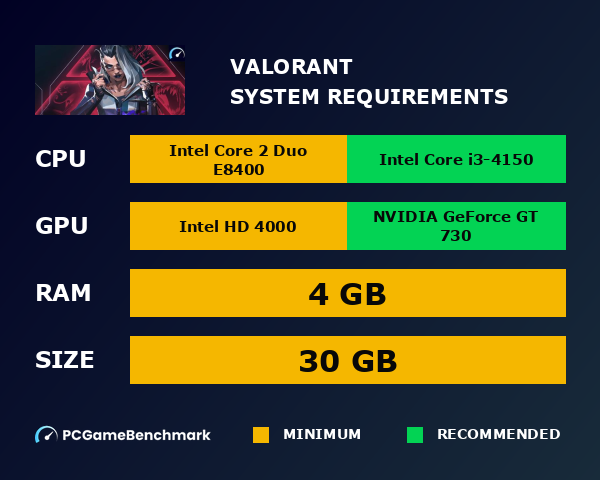
Follow this simple checklist to accurately identify whether you have a bottleneck — and what type it is:
Bottleneck Diagnosis Checklist
- ✅ Press Ctrl + F in Valorant to open the performance stats overlay
- ✅ Compare CPU Frame Time vs GPU Frame Time — the higher one is likely your bottleneck
- ✅ Open Task Manager during a match and check CPU % vs GPU % usage
- ✅ Install MSI Afterburner + RivaTuner for a real-time overlay showing CPU, GPU, temps, and clocks
- ✅ Use HWMonitor to check if your CPU is thermal throttling (temperatures above 85–90°C)
- ✅ Test: lower your resolution from 1440p to 1080p or lower — if FPS barely changes, it’s a CPU bottleneck
- ✅ Check if XMP/EXPO is enabled in BIOS — RAM running at base speed (2133/2400 MHz) instead of rated speed is a common hidden bottleneck
- ✅ Review background processes in Task Manager — browsers, Discord, and RGB software can steal 20+ FPS from Valorant
MSI Afterburner is a free tool widely used by the gaming community and is considered the gold standard for real-time hardware monitoring. You can download it from MSI’s official website to get an accurate picture of what your CPU and GPU are doing frame by frame.
How to Fix Bottlenecking in Valorant: Complete Solutions
Now that you understand the problem and can identify it, here’s how to fix it. We’ll cover solutions from free software tweaks all the way to hardware upgrades.
Fix 1: Enable XMP or EXPO in Your BIOS
This is the single most impactful free fix available to most players and it takes under two minutes. When you buy DDR4 or DDR5 RAM rated at 3200 MHz, 3600 MHz, or higher, your system doesn’t automatically run it at that speed. By default, it runs at a much slower 2133 or 2400 MHz base speed. Enabling XMP (Intel) or EXPO (AMD) in your BIOS unlocks the full rated speed of your RAM, which can directly increase Valorant FPS by 10–15% and significantly reduce frame time instability.
To enable it: Restart your PC, enter BIOS (usually by pressing DEL or F2 during boot), find the XMP/EXPO setting under memory or overclocking options, and enable it. Save and exit.
Fix 2: Set Windows Power Plan to High Performance
Windows’ default “Balanced” power plan dynamically adjusts CPU clock speeds to save energy — which is great for battery life, terrible for gaming. When the CPU scales down its frequency mid-game, you get stutters and FPS drops. Setting your power plan to “High Performance” or “Ultimate Performance” keeps your CPU running at its full clock speed at all times.
Go to Control Panel → Power Options → Select “High Performance.” For laptops, make sure you’re plugged in and that the manufacturer’s gaming/performance mode is active, as many laptops throttle the CPU severely when on battery or in “silent” mode.
Fix 3: Lower CPU-Intensive Graphics Settings
Not all graphics settings are processed by the GPU. Some — particularly shadows, particle effects, and anti-aliasing — place a significant load on the CPU. Turning these down reduces CPU workload and can free up the headroom your processor needs to push higher FPS.
The optimal competitive settings recommended by the Valorant community for maximum FPS and minimum CPU bottleneck are:
| Setting | Recommended Value | Reason |
|---|---|---|
| Material Quality | Low | Reduces GPU and CPU load |
| Texture Quality | Low | Frees VRAM, reduces texture streaming CPU overhead |
| Detail Quality | Low | Reduces object rendering calls on CPU |
| Anti-Aliasing | Off or MSAA 4x | MSAA is GPU-side; None = max FPS |
| Cast Shadows | Off | Shadows are a major CPU bottleneck trigger |
| VSync | Off | Enabling VSync caps FPS and adds input lag |
| Bloom / Distortion | Off | Post-processing effects that cost performance with no competitive benefit |
Fix 4: Cap Your FPS Strategically
This might seem counterintuitive — why would you cap FPS to reduce a bottleneck? The answer is frame time consistency. If your CPU is struggling to hit an uncapped 300 FPS target, it’s working at maximum load constantly, which leads to thermal throttling and unpredictable frame spikes. Capping your FPS at a value your system can sustain comfortably — say, 144 FPS if you have a 144Hz monitor — reduces CPU strain and actually delivers a smoother, more consistent experience than the erratic 120–280 FPS swings of an overloaded system.
Fix 5: Close Background Applications
Background applications are silent FPS killers. Chrome, Discord, RGB lighting software like iCUE or Razer Synapse, streaming software, and even Windows Update can consume significant CPU resources while you’re playing. Before a gaming session, close everything non-essential. A clean boot can sometimes recover 20+ FPS on a bottlenecked system.
For the best results, do a Windows Clean Boot: press Win + R, type “msconfig,” go to Services, check “Hide all Microsoft services,” then disable all third-party services. This gives Valorant maximum access to your CPU resources.
Fix 6: Keep Drivers and BIOS Updated
Riot Games regularly optimizes Valorant for newer hardware and driver versions. Outdated GPU drivers, chipset drivers, or BIOS firmware can prevent your hardware from operating at full efficiency. This is especially true for AMD Ryzen users, where updated chipset drivers and AGESA BIOS updates have historically delivered meaningful FPS improvements in games.
You can find official driver guidance on Riot Games’ official Valorant support page, which includes a step-by-step walkthrough for resolving high CPU usage.
Fix 7: Address Thermal Throttling
When a CPU gets too hot — typically above 85–90°C — it automatically reduces its clock speed to protect itself. This is called thermal throttling and it is a massive FPS killer that many players don’t even realize is happening. Your PC might be capable of significantly better performance, but the thermal management system is artificially limiting it.
Fix thermal throttling by: cleaning dust from your CPU cooler and case fans, replacing dried-out thermal paste (especially on laptops), improving case airflow, or upgrading to a better CPU cooler. Laptop users should also consider undervolting, which reduces heat generation without sacrificing clock speeds.
🔍 Why Valorant Is Different: The CPU-Bound Reality
To diagnose a bottleneck, you must first understand how Valorant utilizes your hardware. Riot Games built Valorant on an optimized version of Unreal Engine 4, but with a specific philosophy: maximize framerate on as many systems as possible by shifting work to the CPU .
The Server-Side Secret: 2.6ms Processing Windows
Riot’s engineering team revealed that Valorant servers perform 128 tick-rate updates every second—that’s one update every 7.8 milliseconds. To save costs, each CPU core handles three matches simultaneously, giving each game just 2.6 milliseconds of compute time for animations, collision detection, and state changes. This server-side efficiency trickles down to clients: the game engine prioritizes CPU-based physics and logic to maintain synchronization with these tight server windows .
Graphics Light, Logic Heavy
Valorant’s art style is deliberately lightweight to ensure clarity and high framerates. Unlike titles with complex shaders and ray tracing, Valorant’s GPU load is relatively low. This means:
- CPU handles: Player positioning, ability calculations, hit registration, network interpolation, and agent logic.
- GPU handles: Texture rendering, UI display, and post-processing effects like anti-aliasing.
As a result, even a modest GPU like a GTX 1050 can push high framerates if paired with a strong CPU. Conversely, a flagship RTX 4090 paired with an older processor will underperform—the textbook definition of a CPU bottleneck .
📊 The Three Bottleneck Types in Valorant
Not all frame drops are created equal. Here’s how to categorize what you’re experiencing.
| Bottleneck Type | Symptoms | Common Causes |
|---|---|---|
| CPU Bottleneck | GPU usage < 90%, CPU usage near 100% on one or two cores, framerate drops during teamfights, stuttering when multiple abilities activate. | Aging processor (e.g., Intel 7th gen or older), insufficient cores/threads, thermal throttling, background processes competing for CPU time . |
| GPU Bottleneck | GPU usage at 99-100%, CPU usage moderate, framerate consistently lower than expected even on low settings. | Integrated graphics, very old dedicated GPUs (GT 730 or below), excessively high graphics settings, 4K resolution . |
| Network/RAM Bottleneck | Packet loss spikes (visible in-game network graph), stuttering that correlates with ping spikes, FPS drops when moving mouse (Raw Input Buffer issue). | Insufficient RAM bandwidth or capacity (<8GB), unstable Wi-Fi, background downloads, Vanguard conflicts . |
Real-World Example: Ryzen 7 5700G + RTX 4060
A Brazilian hardware forum user reported a puzzling case: upgrading from an RX 5500XT to an RTX 4060 actually decreased performance in Valorant. GPU usage hovered around 30-40%, and CPU usage was similarly low. The community diagnosed it as a classic CPU bottleneck—not because the Ryzen 7 5700G was weak, but because Valorant’s engine couldn’t feed instructions fast enough to utilize the new GPU fully. The fix wasn’t a better graphics card; it was understanding that Valorant simply doesn’t need that much GPU power .
⚡ Pro Tip: The “GPU Usage” Rule
If your GPU usage in Valorant is below 90-95%, you are almost certainly CPU or RAM bottlenecked. This is the single most reliable indicator. Use MSI Afterburner or the Windows Game Bar performance overlay to monitor GPU utilization during matches. Low GPU usage + lower-than-expected FPS = CPU limit reached .
🛠️ How to Diagnose Your Bottleneck (Step-by-Step)
Before upgrading anything, gather data. Here’s a systematic approach to identifying your specific limit.
Step 1: Enable Performance Overlays
- Windows Game Bar: Press Win+G, pin the Performance panel to see CPU, GPU, and RAM usage in real-time.
- MSI Afterburner + RivaTuner: Provides detailed per-core CPU load, frametime graphs, and temperature monitoring .
- Valorant Built-in Graph: Enable Network Round Trip and Packet Loss stats in Settings > Video > Stats to rule out network bottlenecks .
Step 2: Run a Controlled Test
Load into the Range (Practice mode) and observe the following:
- Note your average FPS standing still.
- Trigger multiple abilities rapidly (e.g., Phoenix flashes, Brimstone smokes) and watch for framerate dips.
- Check GPU usage during these dips—if it drops significantly, the CPU is struggling to process ability logic.
Step 3: Check Background Interference
Open Task Manager (Ctrl+Shift+Esc) while Valorant is running. Look for:
- Browser tabs consuming CPU (Chrome/Edge with hardware acceleration enabled) .
- Antivirus scans or Windows Update background processes.
- Discord or GeForce Experience overlays—disable them in their respective settings .
⚠️ WARNING: The “RawInputBuffer” Fix
If you experience FPS drops specifically when moving your mouse, Valorant has a dedicated fix. Enable the “[Beta] RawInputBuffer” setting in the General tab. This separates mouse input processing from the main render thread, preventing mouse movement from spiking CPU load .
✅ 2026 Solutions: AMD vs. Intel Optimization
Once you’ve identified the bottleneck type, apply these targeted fixes.
For CPU Bottlenecks (Most Common)
In-Game Settings:
- Multithreaded Rendering: ON (This is critical—it distributes draw calls across CPU cores) .
- Material/Texture/Detail Quality: Low (Shifts more work to GPU, relieving CPU) .
- Cast Shadows: OFF (Shadow calculations are CPU-intensive).
- NVIDIA Reflex Low Latency: On + Boost (If using NVIDIA GPU, this reduces CPU-side render queue backpressure) .
System Tweaks:
- Game Mode: Enable in Windows Settings > Gaming > Game Mode .
- Power Plan: High Performance or Ultimate Performance in Control Panel .
- Disable Fullscreen Optimizations: Right-click Valorant.exe > Properties > Compatibility tab .
- Close CPU-hungry apps: Particularly Chromium-based browsers with many tabs .
For GPU Bottlenecks (Rare, but Possible)
In-Game Settings:
- Resolution: Use native monitor resolution—dropping below native often forces CPU-side scaling.
- Anti-Aliasing: MSAA 2x or OFF (Higher AA taxes GPU heavily) .
- Anisotropic Filtering: 1x or 2x.
- VSync: OFF (This caps framerate and adds input lag) .
GPU Control Panel Tweaks:
- NVIDIA: Manage 3D Settings > Program Settings > Valorant: Power Management = Prefer Maximum Performance, Texture Filtering = High Performance, Low Latency Mode = Ultra .
- AMD: Radeon Software > Gaming > Valorant: Radeon Anti-Lag = Enabled, Radeon Boost = Enabled, Texture Filtering = Performance .
For RAM/Network Bottlenecks
- RAM Upgrade: 8GB minimum, 16GB recommended. Ensure dual-channel mode (two sticks) for bandwidth .
- Ethernet over Wi-Fi: Even powerline adapters beat unstable wireless .
- Router QoS: Enable Quality of Service to prioritize gaming traffic.
- Vanguard Troubleshooting: If FPS drops correlate with Vanguard updates, perform a clean reinstall of Riot Client .
✔️ Pre-Match Optimization Checklist
- Enable Multithreaded Rendering in Valorant settings.
- Close Chrome/Discord/Slack before launching game.
- Verify GPU drivers updated via NVIDIA/AMD/Intel site (not Windows Update) .
- Set Valorant to “High” priority in Task Manager > Details tab .
- Confirm Windows Game Mode is ON.
- Disable all overlays (Discord, Steam, GeForce Experience) .
- Run Riot Client repair tool if experiencing sudden drops .
Fix 8: Hardware Upgrade Path
If you’ve exhausted all software-level fixes and still can’t hit your target FPS, a hardware upgrade may be necessary. Here’s how to prioritize your upgrade spending for maximum Valorant FPS gain:
| Upgrade | Expected FPS Gain | Priority for Bottleneck Fix |
|---|---|---|
| Upgrade CPU (older gen → modern) | 30–80%+ FPS improvement | 🔴 Highest Priority |
| Upgrade RAM speed / enable XMP | 10–20% FPS improvement | 🟠 High Priority (free if XMP not enabled) |
| Add more RAM (8GB → 16GB) | 5–15% (reduces stutters) | 🟡 Medium Priority |
| Upgrade GPU | Minimal at 1080p low settings | 🟢 Low Priority for CPU-bottlenecked systems |
| Upgrade from HDD to NVMe SSD | Improves load times, minor FPS benefit | 🟡 Medium Priority for overall experience |
⚡ Pro Tip: Best CPUs for Valorant in 2025
For competitive Valorant players targeting 240+ FPS, look for CPUs with strong single-core performance. Top choices include the AMD Ryzen 5 7600X, Intel Core i5-13600K, Intel Core i7-13700K, and AMD Ryzen 7 7800X3D. The 7800X3D in particular offers exceptional gaming performance thanks to its 3D V-Cache technology, delivering buttery smooth frame delivery in CPU-intensive games.
Check out our in-depth comparison guide: How to Choose the Right CPU and GPU Combo for Gaming
The RAM Bottleneck: The Hidden FPS Killer
While the CPU gets most of the attention in bottleneck discussions, RAM is often the overlooked second factor in Valorant performance. Valorant’s frame delivery pipeline is sensitive to memory speed and latency because the CPU needs to constantly read and write game state data to RAM every frame.
Running dual-channel RAM (two sticks instead of one) at DDR4-3600 MHz CL16 or better is strongly recommended for competitive play. Benchmark data shows that upgrading from DDR4-2133 to DDR4-3600 in dual-channel can result in 10–15% more average FPS and notably better frame time consistency — all from a RAM upgrade alone.
DDR5 users should aim for DDR5-6000 for the best performance-per-dollar ratio on AMD Ryzen 7000 and Intel 12th/13th/14th gen platforms. The tighter latency of well-tuned DDR5 kits directly benefits single-core workloads, which is exactly what Valorant runs on.
For an in-depth breakdown of memory performance differences, see our dedicated guide: RAM Speed vs Latency: What Actually Matters for Gaming?
GPU Bottleneck in Valorant: When Does It Actually Happen?
A GPU bottleneck in Valorant is uncommon but not impossible. It typically occurs in specific scenarios:
- Very high resolutions (1440p Ultra, 4K): At 4K with higher quality settings, the GPU has to render significantly more pixels per frame, which can outpace even a modern CPU’s ability to feed it work. In this scenario, the GPU becomes the limiting factor.
- Very low-end systems: Riot confirmed that on lower-spec machines — think integrated graphics or very old dedicated cards — the GPU is often the rendering bottleneck.
- Playing at max graphics settings: If you’re playing Valorant for aesthetics rather than competition and run the game on high/ultra settings, your GPU workload increases substantially.
For the vast majority of competitive players — those using 1080p at low/medium settings on a mid-range to high-end GPU — a GPU bottleneck in Valorant is essentially a non-issue. Your bottleneck will almost always be the CPU.
Laptop-Specific Bottleneck Issues in Valorant
Laptop users face additional bottleneck challenges that desktop users typically don’t. Power and thermal management systems in laptops are far more aggressive, and they can severely limit CPU and GPU performance even when hardware specs look good on paper.
Common laptop-specific bottleneck causes include:
- CPU power limits (TDP throttling): Many budget and mid-range laptops restrict how much power the CPU can draw, limiting its boost clock speeds and directly reducing FPS.
- Thermal throttling: Laptop cooling systems have limited airflow. Under sustained gaming load, CPUs often drop to throttled frequencies to avoid overheating — sometimes operating at 30–50% of their rated speeds.
- Battery power mode: Playing Valorant unplugged almost always triggers significant CPU throttling, as the system prioritizes battery life over performance.
- Optimus / MUX switch issues: Many gaming laptops route GPU output through the integrated graphics chip (Optimus), adding latency and CPU overhead. Enabling the dedicated GPU mode via the MUX switch (if available) can significantly improve performance.
If you’re on a laptop, always plug in your charger, set performance mode in your laptop’s control panel, and use a laptop cooling pad to improve airflow before troubleshooting other bottleneck causes.
Understanding Bottleneck Percentage: What It Means and Its Limits
You may have seen online “bottleneck calculators” that spit out a percentage — like “your CPU bottlenecks your GPU by 23%.” While these tools can provide a rough orientation, experienced hardware enthusiasts and communities like Tom’s Hardware strongly caution against taking them literally.
Here’s why bottleneck calculators are limited:
- They use average performance metrics across all games, not Valorant’s specific single-core workload.
- They don’t account for your RAM speed, XMP configuration, or thermal throttling state.
- They don’t factor in your target FPS (240 FPS vs 60 FPS creates a very different bottleneck profile).
- They can show a high “bottleneck percentage” even for well-matched systems, and vice versa.
The most reliable bottleneck diagnosis always comes from real-time monitoring with tools like MSI Afterburner during actual gameplay — not static calculator estimates. For a comprehensive tool to check your components, you can also visit UserBenchmark, keeping in mind its general comparative nature rather than Valorant-specific accuracy.
For a more accurate Valorant-specific check, use our Bottleneck Calculator which factors in gaming-specific workloads.
Building a Balanced PC for Valorant: Getting It Right From the Start
The best way to avoid bottlenecks is to build or buy a well-balanced system from the outset. Here are three example PC tiers optimized for Valorant, designed to prevent bottlenecking at each performance level:
| Build Tier | CPU | GPU | RAM | Target FPS (Valorant 1080p Low) |
|---|---|---|---|---|
| Budget | Ryzen 5 5600 / i3-12100F | GTX 1660 Super / RX 6600 | 16GB DDR4-3200 Dual Channel | 144–200 FPS |
| Mid-Range | Ryzen 5 7600X / i5-13600K | RTX 3070 / RX 6700 XT | 16GB DDR4-3600 or DDR5-6000 | 240–300 FPS |
| High-End | Ryzen 7 7800X3D / i7-14700K | RTX 4070 / RX 7800 XT | 32GB DDR5-6000 | 300–400+ FPS |
Notice that in each tier, the CPU and GPU are matched proportionally. Putting a high-end GPU with a budget CPU creates an instant bottleneck — and throwing money at a top-tier GPU won’t help your Valorant FPS if the CPU can’t keep up.
For more guidance on building a balanced gaming rig, check out these related resources on DigitalUpbeat:
- Why FPS Drops Happen Even on High-End PCs
- Best Processors for Gaming in 2025
- Best Graphics Cards for Gaming
Quick Action Plan: Fix Your Valorant Bottleneck Today
🎯 Your Valorant Bottleneck Fix Checklist (In Order of Priority)
- Press Ctrl + F in Valorant — check if CPU render time is higher than GPU render time
- Open BIOS and enable XMP/EXPO to unlock full RAM speed (free 10–15% FPS boost)
- Set Windows Power Plan to High Performance
- Turn off Cast Shadows, Bloom, Distortion, VSync in Valorant settings
- Close all background apps — Chrome, Discord, RGB software — before playing
- Check CPU temperature with HWMonitor — if above 85°C, clean fans or replace thermal paste
- Update GPU drivers, chipset drivers, and BIOS firmware
- Test with a clean Windows boot to eliminate background software conflicts
- If on a laptop: plug in charger, enable performance mode, consider a cooling pad
- If all else fails: upgrade your CPU — it’s the highest-impact upgrade for Valorant FPS
Ready to check your system’s bottleneck right now? Use our free tool to instantly see whether your CPU or GPU is limiting your Valorant performance.
Frequently Asked Questions (FAQ)
Q1: Can I fix a CPU bottleneck in Valorant without buying new hardware?
Yes — in many cases, you can achieve significant FPS gains through free software fixes alone. Enabling XMP in your BIOS, setting your Windows power plan to High Performance, closing background applications, lowering CPU-intensive graphics settings like shadows, and ensuring your CPU isn’t thermal throttling can all deliver meaningful improvements without spending a single rupee. That said, if you’re running a very old processor (4th or 5th gen Intel, early Ryzen), a hardware upgrade will eventually become necessary to hit high FPS targets.
Q2: Is a 10–15% bottleneck bad for Valorant?
A small imbalance between components is normal and unavoidable in virtually every PC build. A bottleneck percentage in the 5–15% range is generally acceptable and won’t significantly affect your gameplay experience. Problems typically become noticeable when the imbalance exceeds 20–30%, or when hardware is severely mismatched — like a top-end GPU paired with a processor from 10 years ago. Focus on real-world monitoring (MSI Afterburner) rather than calculator percentages.
Q3: Does RAM speed really affect Valorant FPS?
Yes, significantly. Valorant’s single-threaded CPU dependency means the processor constantly reads and writes data to RAM. Faster RAM reduces the latency of these operations and allows the CPU to complete more frame calculations per second. Upgrading from stock-speed DDR4-2133 to DDR4-3600 with XMP enabled has been shown to increase Valorant FPS by 10–15% and dramatically improve frame time consistency — especially in clutch, high-action moments. Make sure your RAM is running in dual-channel configuration (two sticks in the correct slots) for best results.
Q4: Why do I get FPS drops only during specific moments in Valorant?
Riot Games explained in their developer documentation that Valorant’s FPS fluctuates based on the intensity of in-game events. During quiet, low-activity phases of a round, FPS is high. When multiple agents use abilities simultaneously, explosions occur, or many players are shooting in close proximity, the CPU has to process significantly more game logic per frame, which causes FPS dips. This “CPU spike” behavior is characteristic of a CPU bottleneck situation. The best mitigation is to ensure your CPU has thermal headroom (not throttling) and that background processes aren’t consuming additional CPU cycles during those peak moments.
Q5: Should I upgrade my CPU or GPU to fix Valorant performance?
For the vast majority of Valorant players — especially those playing at 1080p on low or medium settings to maximize FPS — upgrading the CPU will deliver a far greater performance improvement than upgrading the GPU. Valorant is CPU-bound at these settings, meaning the GPU is already underutilized. Spending money on a new GPU when your CPU is the bottleneck will result in minimal gains. Prioritize a modern CPU with high single-core performance (Ryzen 5 7600X, i5-13600K, or better), pair it with fast dual-channel RAM, and your GPU will finally be able to stretch its legs.
Related Posts from DigitalUpbeat
You Might Also Like
- Why FPS Drops Happen Even on High-End PCs
- How to Choose the Right CPU and GPU Combo for Gaming
- RAM Speed vs Latency: What Actually Matters for Gaming?
- Free Bottleneck Calculator — Check Your CPU & GPU Match
- Best Processors for Gaming in 2025
- i7-9700K Bottleneck Guide: Is It Still Worth Using in 2025?
- Best RAM for PC Gaming in 2026
- SSD vs HDD: Which Is Best for Gaming?
Still struggling with Valorant performance? Drop your PC specs in the comments below and our community will help you identify your exact bottleneck and suggest the best upgrade path for your budget.

Jaeden Higgins is a tech review writer associated with DigitalUpbeat. He contributes content focused on PC hardware, laptops, graphics cards, and related tech topics, helping readers understand products through clear, practical reviews and buying advice.


