
Book Appointment Now


How to Run Windows 11 on AM3+ CPU
How to Run Windows 11 on AM3+ CPU (FX-8350, FX-6300 & More) — Full Guide 2025
⚡ Quick Summary
AM3+ CPUs like the AMD FX-8350, FX-6300, FX-9590, and others are not on Microsoft’s official Windows 11 supported CPU list. They also typically lack TPM 2.0 and may use Legacy BIOS instead of UEFI. However, Windows 11 can be installed on these systems using one of three bypass methods: Rufus (easiest), Registry hack during setup, or a manual ISO modification. This guide walks you through each method step by step, with warnings, tips, and everything you need to know before you start.
Why AM3+ CPUs Are Blocked from Windows 11
When Microsoft released Windows 11 in October 2021, it came with a strict set of hardware requirements that immediately locked out millions of older PCs. For AM3+ platform users running AMD FX-series processors (Bulldozer, Piledriver, Steamroller, Excavator), the situation is particularly challenging — and for good reason:
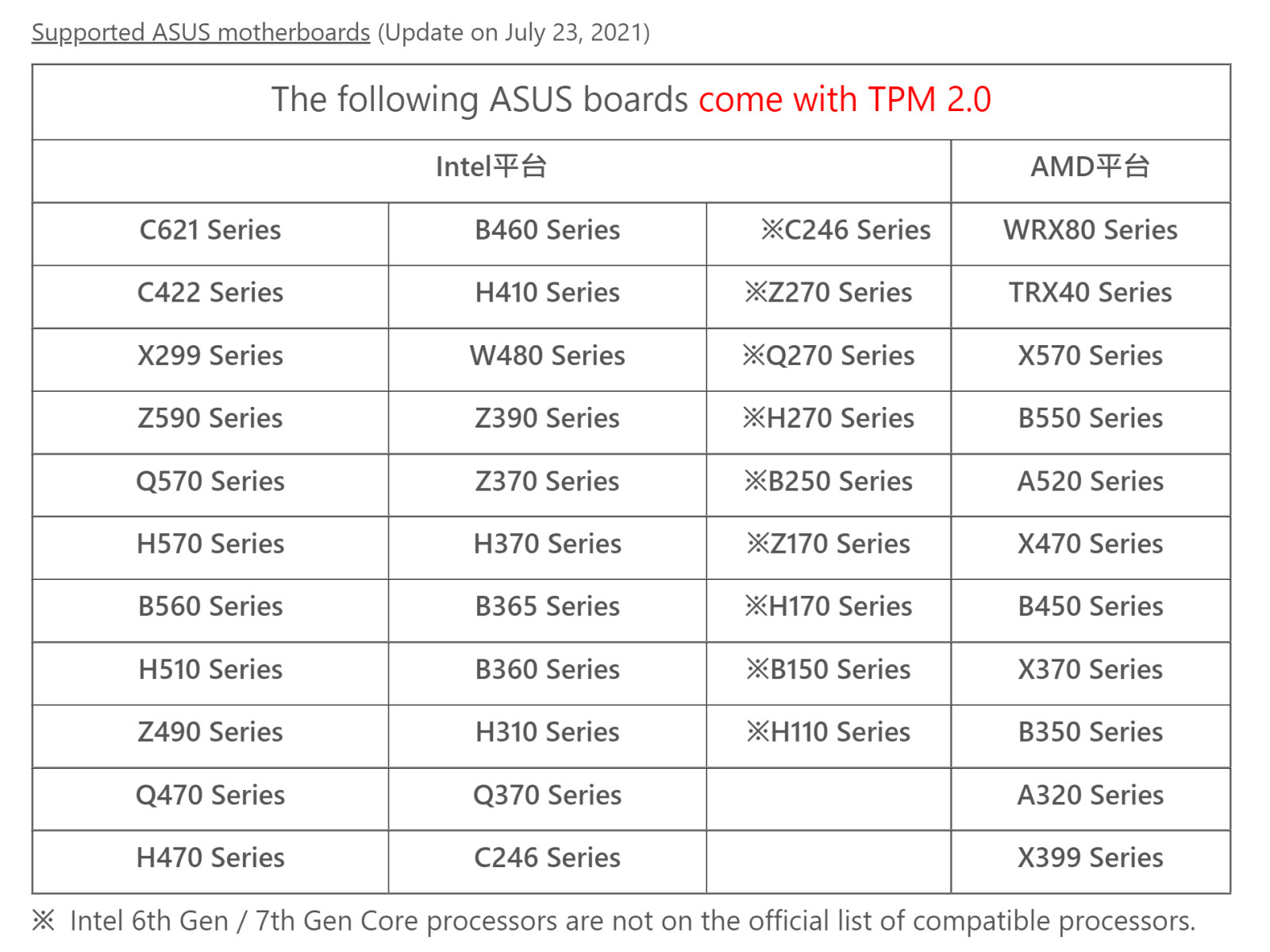
- Unsupported CPU: Microsoft’s approved CPU list starts at AMD Zen 2 (Ryzen 3000 series) and Intel 8th Gen. The entire FX lineup is excluded.
- No TPM 2.0: AM3+ motherboards almost universally lack a hardware TPM 2.0 chip, and the platform predates AMD’s fTPM (firmware TPM) feature.
- Legacy BIOS / Limited UEFI: Many older AM3+ boards use traditional BIOS rather than UEFI, or have limited UEFI implementations without Secure Boot support.
- No Secure Boot: Secure Boot is a UEFI feature — on Legacy BIOS boards, it simply doesn’t exist.
Despite all this, Windows 11 can run on AM3+ hardware. The operating system itself doesn’t technically require TPM 2.0 to function — Microsoft’s requirements are enforced at the installer level, not at the OS level. This means bypassing these checks during installation allows Windows 11 to run normally on FX hardware.
⚠️ Important Warning Before You Start
- Microsoft officially warns that unsupported PCs may not receive future updates — though in practice, most users have continued receiving cumulative updates normally.
- Starting with Windows 11 24H2, CPUs lacking SSE 4.2 and POPCNT instruction sets will not boot Windows 11 at all — regardless of any bypass. AM3+ FX processors DO support these instructions, so you’re safe on this front.
- Without TPM 2.0, features like BitLocker hardware encryption and Credential Guard are weakened or unavailable.
- Always back up your data before attempting any OS installation.
Pre-Installation Checklist: What You Need
✅ Before You Begin — Checklist
- ☐ A USB flash drive of at least 8GB (16GB recommended)
- ☐ A Windows PC to create the installation media (can be the same AM3+ machine if running Windows 10)
- ☐ Windows 11 ISO — download free from Microsoft’s official page
- ☐ Rufus 3.18 or newer — download from rufus.ie (for Method 1)
- ☐ Valid Windows 10 product key (your existing key will activate Windows 11 too)
- ☐ At least 64GB of free storage on your target drive
- ☐ At least 4GB of RAM installed
- ☐ BIOS/UEFI access to set the boot order
- ☐ Full data backup of your existing system
Step 0: Check Your BIOS Mode (UEFI vs Legacy)
Before attempting any installation, you need to know whether your AM3+ motherboard boots in UEFI mode or Legacy BIOS mode. This affects which installation method will work for you.
How to Check Your Boot Mode in Windows 10
- Press Windows + R and type
msinfo32, then press Enter - In System Information, find the row labelled BIOS Mode
- If it says UEFI — you have more options available
- If it says Legacy — you’ll need the Rufus method and may need to convert your disk to MBR or use CSM mode
| Boot Mode | Disk Partition Style | Secure Boot | Best Method |
|---|---|---|---|
| UEFI | GPT | Possible (if supported) | Rufus or Registry Hack |
| UEFI (CSM enabled) | MBR or GPT | Limited | Rufus (recommended) |
| Legacy BIOS | MBR | Not available | Rufus with bypass options |
💡 Pro Tip — Enable UEFI if Available
Some AM3+ motherboards (especially later ones like the ASUS M5A99FX PRO, Gigabyte 990FXA-UD3) do support UEFI mode. Enter your BIOS setup (press Delete or F2 at boot) and look for a Boot Mode option. Switch from “Legacy” to “UEFI” or “UEFI + CSM” if available. This makes the Windows 11 installation smoother and more stable.
Method 1: Using Rufus (Easiest — Recommended for Most Users)
Rufus is a free, open-source tool that creates bootable USB drives from ISO files. Since version 3.2, it includes built-in options to bypass Windows 11’s TPM 2.0, Secure Boot, CPU, and RAM requirements automatically. This is by far the simplest and most reliable method for AM3+ users.
Step-by-Step: Rufus Method
-
- Download the Windows 11 ISO
Go to Microsoft’s Windows 11 download page. Under “Download Windows 11 Disk Image (ISO)”, select Windows 11 (multi-edition ISO) and download it. The file is around 5.5–6GB.
- Download the Windows 11 ISO
-
- Download and open Rufus
Visit rufus.ie and download the latest version. It’s a portable app — no installation needed. Run it as Administrator.
- Download and open Rufus
-
- Insert your USB drive
Plug in your 8GB+ USB drive. Rufus will detect it automatically under “Device”.
- Insert your USB drive
-
- Select the Windows 11 ISO
Under “Boot selection”, click SELECT and browse to your downloaded Windows 11 ISO file.
- Select the Windows 11 ISO
-
- Choose the correct Partition Scheme
— If your board boots in UEFI: Select GPT partition scheme and UEFI (non-CSM) target system.
— If your board uses Legacy BIOS: Select MBR partition scheme and BIOS or UEFI target system.
- Choose the correct Partition Scheme
-
- Click START
After clicking Start, Rufus will display a dialog asking about Windows customisation options. You will see checkboxes — tick the following:- ✅ Remove requirement for 4GB+ RAM, Secure Boot, and TPM 2.0
- ✅ Remove requirement for an online Microsoft account (optional but recommended)
- ✅ Disable data collection (optional)
Click OK to proceed.
- Click START
-
- Wait for Rufus to finish
This takes 5–15 minutes depending on your USB drive speed. Do not remove the drive until it shows “READY”.
- Wait for Rufus to finish
-
- Boot from the USB
Restart your PC and enter BIOS/UEFI setup (usually Delete or F2 at POST). Set the USB drive as the first boot device. Save and exit.
- Boot from the USB
- Install Windows 11 normally
The setup will proceed without asking for TPM, CPU, or Secure Boot verification. Follow the on-screen prompts to complete installation. No registry editing required.
💡 Pro Tip — Disconnect from the Internet During Installation
Some users on AM3+ hardware report that connected upgrades can stall at 70–75% completion. To be safe, disconnect your Ethernet cable and disable Wi-Fi before booting from the USB. Reconnect after Windows 11 is fully installed and running.
Method 2: Registry Hack During Clean Install (No Extra Tools)
If you’d rather not use third-party tools, you can bypass Windows 11’s hardware checks by editing the registry during the setup process. This requires a standard Windows 11 installation USB (created via Microsoft’s Media Creation Tool or downloaded ISO burned to USB) and a few extra steps mid-install.
Step-by-Step: Registry Method
-
- Create a standard Windows 11 USB
Use Microsoft’s Media Creation Tool or burn the Windows 11 ISO to USB using any tool (Rufus without bypass options, Etcher, etc.).
- Create a standard Windows 11 USB
-
- Boot from the USB drive
Set the USB as the first boot device in your BIOS and restart. You’ll land on the Windows 11 setup language selection screen.
- Boot from the USB drive
-
- Open Command Prompt with Shift + F10
On the language/keyboard selection screen, press Shift + F10 simultaneously. A Command Prompt window will open.
- Open Command Prompt with Shift + F10
-
- Open Registry Editor
In the Command Prompt, typeregeditand press Enter.
- Open Registry Editor
-
- Navigate to the Setup key
In Registry Editor, navigate to:
HKEY_LOCAL_MACHINE\SYSTEM\Setup
- Navigate to the Setup key
-
- Create a new key called LabConfig
Right-click on Setup in the left pane, select New → Key, and name itLabConfig.
- Create a new key called LabConfig
-
- Create the bypass DWORD values inside LabConfig
Click on LabConfig, then in the right pane, right-click and select New → DWORD (32-bit) Value. Create all of the following entries and set each to 1:BypassTPMCheck→ Value: 1BypassSecureBootCheck→ Value: 1BypassRAMCheck→ Value: 1BypassCPUCheck→ Value: 1BypassStorageCheck→ Value: 1 (optional)
- Create the bypass DWORD values inside LabConfig
- Close Registry Editor and Command Prompt
Close both windows and proceed with the Windows 11 installation normally. The setup will now skip all hardware compatibility checks.
| Registry Value | Type | Data | What It Bypasses |
|---|---|---|---|
BypassTPMCheck |
DWORD (32-bit) | 1 | TPM 2.0 requirement |
BypassSecureBootCheck |
DWORD (32-bit) | 1 | Secure Boot requirement |
BypassRAMCheck |
DWORD (32-bit) | 1 | 4GB RAM minimum check |
BypassCPUCheck |
DWORD (32-bit) | 1 | CPU compatibility check |
Method 3: In-Place Upgrade via Registry (From Windows 10)
If you’re currently running Windows 10 on your AM3+ system and want to upgrade to Windows 11 without doing a clean install, Microsoft actually provides an official — if semi-hidden — registry path for this scenario. It requires at least TPM 1.2 (which many AM3+ boards have) and bypasses the CPU and TPM 2.0 checks.
Steps for In-Place Upgrade:
- Press Windows + R, type
regedit, and open Registry Editor - Navigate to
HKEY_LOCAL_MACHINE\SYSTEM\Setup\MoSetup - Right-click in the right pane and create a new DWORD (32-bit) Value
- Name it
AllowUpgradesWithUnsupportedTPMOrCPUand set its value to 1 - Close Registry Editor and restart your PC
- Run the Windows 11 Installation Assistant from Microsoft’s website — it will now proceed with the upgrade
⚠️ Warning — TPM 1.2 Required for Method 3
This official Microsoft registry hack only works if your system has at least TPM 1.2. If your AM3+ board has no TPM chip whatsoever, this method will not work. Check your motherboard’s spec sheet or BIOS security settings to see if any TPM is present. If not, use the Rufus method instead.
Method Comparison: Which Should You Use?
✅ Rufus Method
- Difficulty: Very easy — beginner-friendly
- TPM needed: No — bypasses all checks
- Works with Legacy BIOS: Yes
- Clean install only: Yes
- Best for: Most AM3+ users
🛠 Registry During Setup
- Difficulty: Moderate — requires manual registry edits
- TPM needed: No — bypasses all checks
- Works with Legacy BIOS: Yes
- Clean install only: Yes
- Best for: Users who prefer no third-party tools
🔄 In-Place Upgrade (MoSetup)
- Difficulty: Easy
- TPM needed: Yes — at least TPM 1.2
- Keeps files & apps: Yes — best for keeping data
- Best for: AM3+ boards with TPM 1.2
⚙️ BIOS-Only UEFI + GPT
- Difficulty: Advanced
- Requires: UEFI BIOS support + GPT conversion
- Best approach: Use alongside Rufus method
- Best for: Users who want cleanest possible setup
After Installation: What to Expect on AM3+ Hardware
Once Windows 11 is installed on your AM3+ system, it generally runs surprisingly well for everyday tasks. The operating system itself doesn’t actively cripple performance on unsupported hardware. Here’s what to expect:
What Works Fine
- General desktop use, web browsing, Office applications
- Gaming — performance is identical to what Windows 10 delivered on the same hardware
- Monthly cumulative security updates (most users receive these normally)
- DirectX 12 and Vulkan games
- Windows Subsystem for Linux (WSL)
- Most Windows 11 features (Snap Layouts, Virtual Desktops, new Start Menu)
What’s Limited or Missing
- BitLocker hardware encryption — weaker without TPM 2.0
- Windows Hello face recognition — requires specific hardware
- Credential Guard — requires UEFI and VBS
- Future major feature updates — not guaranteed; Microsoft reserves the right to block these on unsupported hardware
- Copilot AI features — some require TPM 2.0 or newer CPU features
💡 Pro Tip — Install Drivers in This Order
After installing Windows 11 on your AM3+ system, install drivers in this order for best stability: (1) Chipset drivers from AMD’s website, (2) GPU drivers, (3) Audio drivers, (4) LAN/Wi-Fi drivers. Do not rely solely on Windows Update for AM3+ drivers — some may not be available for Windows 11.
Common Issues & Troubleshooting
| Problem | Cause | Fix |
|---|---|---|
| Setup stops at “This PC can’t run Windows 11” | Bypass not applied correctly | Re-do Rufus with bypass options ticked, or verify LabConfig registry values are set to 1 |
| Installation hangs at 70–75% | Online account check over internet | Disconnect Ethernet/Wi-Fi before booting from USB |
| PC won’t boot from USB | Wrong boot mode (UEFI vs Legacy) | Match USB partition scheme to your BIOS mode; enable CSM if needed |
| No audio after install | Missing AM3+ chipset audio drivers | Download Realtek audio drivers from your motherboard manufacturer’s website |
| Windows won’t activate | License not transferred correctly | Sign into your Microsoft account linked to your Windows 10 digital license |
| “Secure Boot not enabled” watermark | Legacy BIOS — no Secure Boot | Cosmetic only on most builds; can be suppressed via registry tweak |
Should You Really Install Windows 11 on an AM3+ CPU?
This is the honest question. Windows 10 reached its official end of life in October 2025, meaning it no longer receives free security updates from Microsoft (unless you’re enrolled in the paid Extended Security Updates program). This makes the pressure to move to Windows 11 real — even for AM3+ users.
That said, here are some things to honestly consider:
Recommended Products for Your AM3+ Upgrade Journey
🛒 High-Speed USB Drive for Installation Media
A fast USB 3.0 flash drive (32GB) is essential for creating a smooth Windows 11 installation experience. Faster USB drives mean quicker install times.
🛒 AM3+ Compatible SSD (for Better Windows 11 Performance)
Installing Windows 11 on an SSD significantly improves performance on AM3+ hardware. A SATA SSD is fully compatible with AM3+ motherboards and transforms boot times and responsiveness.
🛒 DDR3 RAM Upgrade (16GB Kit)
Windows 11 runs better with at least 8GB of RAM — and 16GB is ideal. If your AM3+ system has less, a DDR3 16GB kit is a worthwhile and affordable upgrade before installing Windows 11.
Frequently Asked Questions (FAQ)
Q1: Can the AMD FX-8350 actually run Windows 11?
Yes — with a bypass method, the AMD FX-8350 can install and run Windows 11. The FX-8350 supports the SSE 4.2 and POPCNT instruction sets required since the Windows 11 24H2 update, so it won’t hit a hard block. Performance is fine for everyday tasks and gaming, though without TPM 2.0, some security features are limited.
Q2: Will my AM3+ system receive Windows 11 updates after the bypass install?
In practice, most users on unsupported hardware continue to receive cumulative monthly security updates normally. However, major feature updates (like annual version upgrades) may be blocked. Microsoft does not officially guarantee updates for unsupported devices, so treat any updates received as a bonus rather than a guarantee.
Q3: Do I need a TPM chip for Windows 11 on AM3+?
Not if you use the Rufus method or the Registry-during-setup method — these bypass the TPM check entirely. The in-place upgrade method via registry (AllowUpgradesWithUnsupportedTPMOrCPU) still requires at least TPM 1.2, so check your motherboard specs for that approach.
Q4: Is using Rufus to install Windows 11 on an unsupported PC legal?
Yes. You are installing a genuine Windows 11 ISO and using a valid license key. Rufus simply automates the process of skipping hardware checks that Microsoft imposes at the installer level. No software is cracked, patched, or pirated. Microsoft’s own documentation acknowledges these bypass paths exist.
Q5: Should I upgrade to a newer platform instead of running Windows 11 on AM3+?
If your budget allows, upgrading to an AM4 platform (Ryzen 5 2600X or better) or AM5 gives you a properly supported Windows 11 experience, better performance, and future upgrade paths. However, if budget is tight, running Windows 11 on AM3+ via bypass is a perfectly valid short-to-medium-term solution to keep your system secure and up to date.
📚 Related Articles You Might Like
📣 Ready to Upgrade Your Platform Entirely?
If running Windows 11 on AM3+ hardware makes you want to upgrade to a fully supported system, check out our detailed CPU upgrade guides comparing the best modern options for every budget.

Jaeden Higgins is a tech review writer associated with DigitalUpbeat. He contributes content focused on PC hardware, laptops, graphics cards, and related tech topics, helping readers understand products through clear, practical reviews and buying advice.


