Book Appointment Now

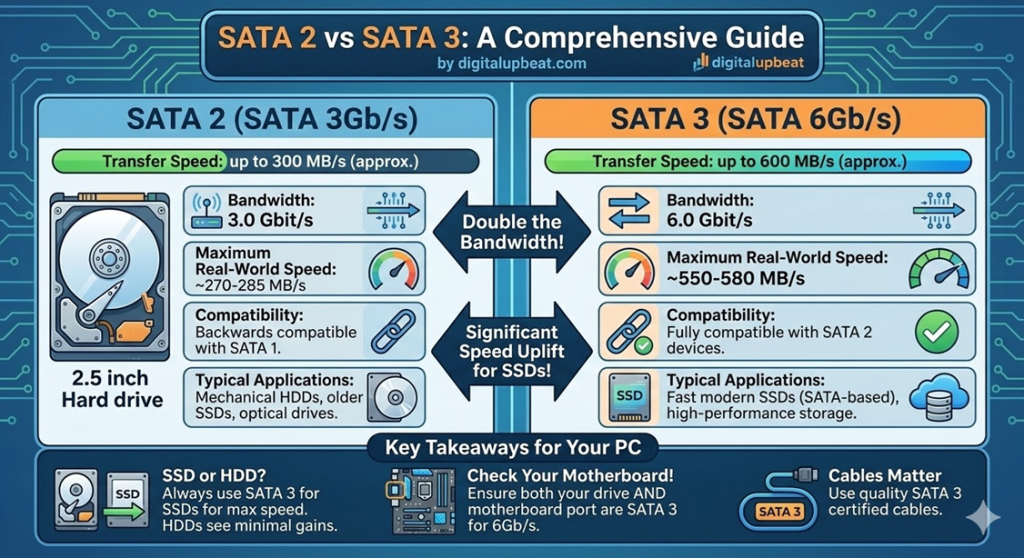
SATA 2 vs SATA 3
Quick Summary: SATA 2 (3 Gb/s) and SATA 3 (6 Gb/s) are two generations of the Serial ATA storage interface standard. SATA 3 doubles the theoretical bandwidth of SATA 2, but the physical cables are identical — you cannot tell them apart by looking at them. The real-world performance difference between SATA 2 and SATA 3 depends entirely on what storage device you are connecting: for traditional mechanical hard drives, the difference is essentially zero. For SATA SSDs, SATA 3 unlocks full sequential speed. Both generations are backward and forward compatible with each other. This guide explains everything: the specifications, the cables, the real-world performance impact, and whether you actually need to upgrade.
SATA 2 vs SATA 3: What’s the Difference and Does It Actually Matter?
Few topics in PC hardware cause more confusion than the difference between SATA 2 and SATA 3. The numbers suggest a straightforward doubling of performance — SATA 3 runs at 6 Gb/s versus SATA 2’s 3 Gb/s — and yet builders who have swapped between them often report that real-world performance feels completely unchanged. Others insist the upgrade made a noticeable difference. Both groups can be right, depending on one critical variable: the storage device they are connecting.
This guide cuts through the confusion with a complete, honest breakdown of SATA 2 versus SATA 3 — what the numbers really mean, why the cables look identical, when the difference matters, when it does not, and what you actually need to do to get the best performance out of your storage setup in 2026.
⚡ Key Takeaways
- SATA 2 = 3 Gb/s interface (~300 MB/s real throughput). SATA 3 = 6 Gb/s interface (~600 MB/s real throughput).
- The physical cables for SATA 2 and SATA 3 are identical — same 7-pin connector, same appearance.
- For mechanical HDDs: zero real-world difference between SATA 2 and SATA 3.
- For SATA SSDs: SATA 3 provides measurably higher sequential read/write speeds.
- All SATA generations are fully backward and forward compatible.
- The biggest storage upgrade you can make is switching from HDD to SSD — not SATA 2 to SATA 3.
- Modern performance storage has moved well beyond SATA entirely — to NVMe PCIe SSDs.
What Is SATA? A Quick Foundation
Before comparing the two generations, it helps to understand what SATA itself is and why it matters. SATA stands for Serial ATA — Serial Advanced Technology Attachment. It is the interface standard that connects storage devices (hard drives, SSDs, and optical drives) to a computer’s motherboard. SATA replaced the older PATA (Parallel ATA) standard in the early 2000s, offering smaller cables, faster speeds, and the ability to hot-swap drives without restarting the system.
The SATA standard has gone through four generations since its introduction:
- SATA 1.0 (2003) — 1.5 Gb/s (~150 MB/s)
- SATA 2.0 (2004) — 3.0 Gb/s (~300 MB/s)
- SATA 3.0 (2008) — 6.0 Gb/s (~600 MB/s)
- SATA 3.2 / SATA Express (2013) — Up to 16 Gb/s (largely replaced by NVMe)
When people talk about “SATA 2 vs SATA 3” today, they are almost always referring to the SATA 2.0 (3 Gb/s) and SATA 3.0 (6 Gb/s) generations — the two that are still found in real-world hardware across millions of PCs. As the SATA-IO organization notes, SATA 3.0 remains the current mainstream desktop and laptop SATA standard, having largely displaced SATA 2.0 on all new hardware manufactured since approximately 2012.
SATA 2 vs SATA 3: The Specifications Side by Side
SATA 2 vs SATA 3: Full Specification Comparison
| Specification | SATA 2 (SATA II) | SATA 3 (SATA III) |
|---|---|---|
| Official Name | SATA Revision 2.0 | SATA Revision 3.0 |
| Year Introduced | 2004 | 2008 |
| Interface Speed | 3 Gb/s (Gigabits per second) | 6 Gb/s (Gigabits per second) |
| Real-World Max Throughput | ~300 MB/s (after 8b/10b encoding overhead) | ~600 MB/s (after 8b/10b encoding overhead) |
| Connector Type | 7-pin data / 15-pin power | 7-pin data / 15-pin power (identical) |
| Cable Appearance | Identical to SATA 3 | Identical to SATA 2 |
| NCQ Support | Yes (up to 32 commands) | Yes (up to 32 commands + improved) |
| Hot Swapping | Yes | Yes |
| Backward Compatibility | Works with SATA 1 devices | Works with SATA 1 and SATA 2 devices |
| Typical Color Coding | Black or white ports/cables | Often blue ports on motherboards (not universal) |
| Still Found On | Older motherboards (pre-2012), some budget boards | All modern motherboards (2012 onward) |
The Cable: Why SATA 2 and SATA 3 Cables Look Identical
This is where the confusion starts for most builders. If SATA 3 is twice as fast as SATA 2, why do the cables look completely the same? Why can you not simply tell by looking at the cable whether it is a SATA 2 or SATA 3 cable?
The answer is that the physical connector standard did not change between SATA 2 and SATA 3. Both generations use the same 7-pin L-shaped data connector on both ends — one end connects to the motherboard port, the other to the storage device. The cable itself carries the same signal wires in the same arrangement regardless of which generation it is rated for. What changed between the generations was the signaling technology inside the motherboard controller and the storage device controller — not the physical cable.
So what makes a cable “SATA 3 rated”? In theory, higher-quality shielding and conductor materials allow more reliable signal transmission at the higher 6 Gb/s data rate. In practice, the vast majority of standard SATA cables sold today work fine at SATA 3 speeds — the quality difference between a “SATA 2 cable” and a “SATA 3 cable” is largely a marketing distinction rather than a meaningful physical one, except in the case of genuinely cheap, poorly constructed cables.
Some manufacturers print markings on their cables or use different colors to differentiate SATA 3-rated cables (often labeled “6Gb/s” or marked with a speed rating), but there is no universal standard for this. Unless your cable is clearly marked, the only reliable way to confirm a cable’s generation is to check the product specification or try it in your system.
⚠️ Important: The Port Color Matters More Than the Cable
While some motherboards color their SATA 3 ports blue (to distinguish them from SATA 2 ports), this is not universal — many boards use the same color for all ports regardless of generation, and some use blue for both. Never assume a port’s generation from its color alone. Always check your motherboard manual, which will clearly label each port as 3Gb/s (SATA 2) or 6Gb/s (SATA 3). For SSDs, always connect to a SATA 3 port if one is available.
While some motherboards color their SATA 3 ports blue (to distinguish them from SATA 2 ports), this is not universal — many boards use the same color for all ports regardless of generation, and some use blue for both. Never assume a port’s generation from its color alone. Always check your motherboard manual, which will clearly label each port as 3Gb/s (SATA 2) or 6Gb/s (SATA 3). For SSDs, always connect to a SATA 3 port if one is available.
Understanding the Real Speeds: Gb/s vs MB/s and Why the Math Matters
One of the most persistent sources of confusion around SATA speeds is the difference between Gigabits per second (Gb/s) and Megabytes per second (MB/s) — two different units that are often mixed up or used interchangeably in ways that create misleading expectations.
Here is the conversion breakdown that every builder should understand:
SATA Speed: Understanding the Units
| Generation | Rated Speed (Gb/s) | Convert to MB/s (÷8) | Minus 8b/10b Overhead (~20%) | Real Max Throughput |
|---|---|---|---|---|
| SATA 1.0 | 1.5 Gb/s | ~187 MB/s | ~20% overhead | ~150 MB/s |
| SATA 2.0 | 3.0 Gb/s | ~375 MB/s | ~20% overhead | ~300 MB/s |
| SATA 3.0 | 6.0 Gb/s | ~750 MB/s | ~20% overhead | ~600 MB/s |
The 8b/10b encoding is a line code that transmits 10 bits for every 8 bits of actual data, adding ~20% overhead to all SATA connections. This is why the “6 Gb/s” SATA 3 rating translates to a real ceiling of approximately 600 MB/s rather than 750 MB/s.
The key insight from this table: SATA 3’s real-world maximum throughput ceiling is approximately 600 MB/s. Modern SATA SSDs push right up against this ceiling — the best SATA SSDs hit 550–560 MB/s sequential read speeds, very close to the 600 MB/s physical maximum. This is also why SATA itself, even at its third-generation best, has been superseded by NVMe PCIe storage — a PCIe 4.0 x4 NVMe SSD can deliver over 7,000 MB/s, more than ten times what SATA 3 can handle.
SATA 2 vs SATA 3 for Hard Drives (HDDs): The Honest Answer
If your system uses traditional mechanical hard drives, the comparison between SATA 2 and SATA 3 is the simplest possible: it makes absolutely no difference. Not a little difference. Not a small difference. Zero measurable difference in almost every real-world scenario.
Why? Because mechanical hard drives are physically incapable of sustaining data transfer speeds that approach even SATA 2’s 300 MB/s ceiling. The fastest consumer desktop HDDs — high-RPM 7200 RPM drives with high areal density platters — peak at around 180–210 MB/s in sequential reads under ideal conditions. Laptop HDDs at 5,400 RPM typically max out at 80–120 MB/s. The bottleneck in an HDD is always the physical spinning platter and read/write head — not the interface it is connected to.
Even SATA 1’s 150 MB/s ceiling would only be a constraint for the very fastest desktop HDDs under sequential workloads. For the random 4K read/write operations that dominate real-world usage (opening files, loading applications, browsing the OS), HDD performance is limited to a tiny fraction of even SATA 1’s bandwidth. The interface has never been the bottleneck for mechanical storage.
HDD on SATA 3: Advantages
- No functional performance loss — drive operates at full native speed regardless of port generation
- Takes advantage of improved NCQ command queuing in SATA 3 controllers for slightly better multi-queue workloads
- Future-proof if you later add a SATA SSD to the same port
- Burst cache reads (from the drive’s onboard cache) may slightly benefit from higher bandwidth in rare scenarios
- No compatibility concerns — SATA 2 HDDs work perfectly in SATA 3 ports
HDD on SATA 3: Limitations
- Zero improvement in sustained sequential read/write speeds — HDD mechanics are the bottleneck, not the interface
- No improvement in random 4K access times — these are governed by rotational latency and seek time
- No meaningful improvement in boot times, game loading, or application launch speeds
- Upgrading purely from SATA 2 to SATA 3 for an HDD is a complete waste of money
- Even SATA 1 is rarely the bottleneck for standard HDD workloads
SATA 2 vs SATA 3 for SSDs: Where the Difference Actually Shows Up
For SATA solid-state drives, the comparison between SATA 2 and SATA 3 produces a measurably real — though sometimes overestimated — difference in performance. Here is the nuanced breakdown:
Sequential Read/Write Speeds
This is where SATA 3 delivers its clearest advantage over SATA 2. Modern SATA SSDs are rated for sequential read speeds of 500–560 MB/s — well above SATA 2’s ~300 MB/s ceiling. When a fast SATA SSD like a Samsung 870 EVO or Crucial MX500 is connected to a SATA 2 port, its sequential performance is artificially capped at around 250–300 MB/s. Connect it to a SATA 3 port and the same drive delivers 500+ MB/s — nearly double. For large file transfers, video editing scratch workflows, and drive-to-drive copy operations, this is a real and noticeable difference.
Random 4K Read/Write Performance
This is where the answer becomes more nuanced. Random 4K access — reading and writing thousands of tiny files scattered across the drive — is the dominant storage workload in everyday computing: booting the OS, launching applications, saving documents, loading game assets. For this type of workload, SATA 3’s bandwidth advantage matters much less, because the bottleneck shifts from interface bandwidth to the SSD’s internal controller latency and NAND response times. The practical difference in boot time or application launch speed between a SATA 2 SSD and a SATA 3 SSD is often imperceptible to the human eye — typically only a second or fraction of a second.
Benchmarks vs Real World
In synthetic benchmarks (like CrystalDiskMark), a fast SATA SSD on a SATA 3 port will score roughly twice the sequential MB/s as the same drive on a SATA 2 port. In real-world usage tests measuring boot times and application loads, the same drives often show differences of less than one to two seconds — a gap most users find negligible. As community testing on forums like Tom’s Hardware and AnandTech consistently confirms, the most transformative storage upgrade you can make is switching from any HDD to any SSD — the SATA generation matters significantly less than whether you are on solid-state storage at all.
SATA SSD Performance: SATA 2 Port vs SATA 3 Port
| Benchmark / Task | SATA SSD on SATA 2 Port | SATA SSD on SATA 3 Port | Practical Difference |
|---|---|---|---|
| Sequential Read (CrystalDiskMark) | ~250–265 MB/s | ~500–560 MB/s | Large in benchmarks |
| Sequential Write (CrystalDiskMark) | ~240–250 MB/s | ~480–530 MB/s | Large in benchmarks |
| Random 4K Read | ~25–35 MB/s | ~30–45 MB/s | Small — interface not bottleneck |
| Windows Boot Time | ~10–14 seconds | ~9–13 seconds | Barely noticeable (1–2 sec) |
| Large File Transfer (10 GB) | ~35–40 seconds | ~18–22 seconds | Significant — nearly 2x faster |
| Game Load Times | Minimal improvement over SATA 3 | Slightly faster in some titles | Usually under 2 seconds difference |
| Application Launch | Near-instant | Near-instant | Negligible for most apps |
Values are approximate and vary by drive model, system RAM, and workload. Sequential performance benchmarks show the largest gap; everyday computing tasks show the smallest.
Backward and Forward Compatibility: Can You Mix SATA 2 and SATA 3?
Yes — completely and freely. SATA is fully backward and forward compatible across all three mainstream generations. Here is exactly what happens in each mixed scenario:
- SATA 3 drive in a SATA 2 port: The drive negotiates down to SATA 2 speeds (~300 MB/s max). The drive works perfectly — it just cannot exceed SATA 2’s bandwidth ceiling. No damage, no compatibility issues.
- SATA 2 drive in a SATA 3 port: The drive operates at its native SATA 2 speed. A SATA 3 port does not force a SATA 2 device to run faster than it was designed to. Full compatibility, normal operation.
- SATA 3 cable with SATA 2 port: Works perfectly. The cable has no effect on which speed standard is negotiated — that is determined by the hardware endpoints.
- SATA 2 cable with SATA 3 port: Generally works, as most SATA cables are physically capable of carrying 6 Gb/s signals. Very cheap or very old cables may occasionally cause instability, but this is rare with quality drives.
- SATA 1 device in a SATA 3 port: Works fine at SATA 1 speeds. Full backward compatibility extends to the original generation.
💡 Pro Tip: Connect Your SSD to the Fastest Available Port
On motherboards that have a mix of SATA 2 and SATA 3 ports, always connect your SSD to a SATA 3 port to get full sequential performance. Reserve SATA 2 ports for mechanical hard drives, optical drives, or other lower-speed devices where the interface speed makes no practical difference. Check your motherboard manual — ports are usually labeled with their speed (3 Gb/s or 6 Gb/s) and sometimes color-coded (though not universally). Your SSD in the fastest port; your HDD in whichever port is left over.
On motherboards that have a mix of SATA 2 and SATA 3 ports, always connect your SSD to a SATA 3 port to get full sequential performance. Reserve SATA 2 ports for mechanical hard drives, optical drives, or other lower-speed devices where the interface speed makes no practical difference. Check your motherboard manual — ports are usually labeled with their speed (3 Gb/s or 6 Gb/s) and sometimes color-coded (though not universally). Your SSD in the fastest port; your HDD in whichever port is left over.
How to Identify SATA 2 vs SATA 3 Ports on Your Motherboard
Since the physical connectors are identical, here are the reliable methods for determining which SATA standard each port on your motherboard supports:
🔍 How to Identify Your SATA Port Generation
- Method 1 — Read the motherboard manual: The most reliable method. Your manual’s storage section will list every SATA port by number and clearly state whether it runs at 3 Gb/s (SATA 2) or 6 Gb/s (SATA 3). Download the PDF from the manufacturer’s website if you do not have the physical manual.
- Method 2 — Check port labeling on the board: Many motherboards print small labels directly on the PCB near the SATA ports — “SATA 6G” indicates a SATA 3 port; “SATA 3G” indicates SATA 2. Look carefully with a flashlight if needed.
- Method 3 — Port color coding: Some boards color SATA 3 ports blue and SATA 2 ports black or white, but this is not universal and varies by manufacturer. Never rely on color alone as the final confirmation.
- Method 4 — CPU-Z or HWiNFO64: Free system information tools like CPU-Z or HWiNFO64 can report your storage controller details and the SATA link speed negotiated for each connected device. This shows you the speed your drive is actually running at, not just the theoretical port speed.
- Method 5 — Device Manager (Windows): In Device Manager, under “IDE ATA/ATAPI controllers,” you can find information about your SATA controllers. Properties of the controller or connected drive may indicate the link speed.
- Method 6 — General rule by age: If your motherboard was manufactured before 2011, it likely has a mix of SATA 2 and SATA 3 ports or only SATA 2. Any motherboard from 2012 onward is almost certain to have exclusively SATA 3 ports.
Should You Upgrade From SATA 2 to SATA 3? The Honest Assessment
This is the question that underlies the entire SATA 2 vs SATA 3 debate, and the honest answer depends on exactly what you are upgrading and why.
Should You Upgrade? Scenario-by-Scenario Guide
| Your Current Setup | Recommended Action | Expected Benefit |
|---|---|---|
| HDD on SATA 2 → Want better performance | Replace HDD with any SATA SSD (keep SATA 2 port) | Massive — HDD to SSD is the biggest storage upgrade possible |
| SATA SSD on SATA 2 → Upgrade to SATA 3 port only | Only worth doing if large file transfers are frequent | Moderate for sequential; negligible for everyday tasks |
| SATA SSD on SATA 2 → Upgrade to NVMe SSD | Highly recommended for new builds and upgrades | Very large — NVMe is 5–10x faster than SATA 3 sequential |
| HDD on SATA 2 → Just need to replace the cable | Any SATA cable will work fine — no need to buy “SATA 3 cable” | None — cables don’t determine interface speed |
| Old motherboard with only SATA 2 → Gaming PC upgrade | Add a PCIe SATA 3 expansion card ($15–30) OR upgrade platform | Unlocks full SSD sequential speed at low cost |
| Building a new PC in 2026 | Use NVMe PCIe SSD as primary drive; SATA 3 for secondary storage | Best performance — SATA is only needed for bulk/secondary storage |
SATA 2, SATA 3, and NVMe: The Bigger Storage Picture
It is worth stepping back to place the SATA 2 vs SATA 3 debate in its larger context. While both generations remain relevant for millions of existing systems, the performance frontier of consumer storage has moved far beyond SATA entirely.
NVMe (Non-Volatile Memory Express) SSDs connect directly through the PCIe bus — bypassing the SATA controller entirely — and deliver dramatically higher speeds that no SATA generation can match:
Storage Interface Speed Comparison: SATA vs NVMe
| Interface | Max Sequential Read | Max Sequential Write | Typical Use Case |
|---|---|---|---|
| HDD (7200 RPM) | ~180–210 MB/s | ~170–200 MB/s | Bulk storage, archiving |
| SATA 2 SSD | ~250–300 MB/s | ~240–280 MB/s | Legacy systems |
| SATA 3 SSD | ~500–560 MB/s | ~480–530 MB/s | Secondary storage, budget builds |
| NVMe PCIe 3.0 x4 | ~3,000–3,500 MB/s | ~2,500–3,000 MB/s | OS drive, mainstream gaming builds |
| NVMe PCIe 4.0 x4 | ~5,000–7,000 MB/s | ~4,500–6,500 MB/s | High-performance builds, content creation |
| NVMe PCIe 5.0 x4 | ~10,000–14,000 MB/s | ~9,000–12,000 MB/s | Professional workstations, enthusiast builds |
This comparison makes clear that agonizing over SATA 2 versus SATA 3 is, in the context of 2026 hardware, a relatively minor concern. The transition that actually transforms a PC’s storage experience is moving from any spinning HDD to any SSD — and beyond that, moving from SATA storage entirely to NVMe for the primary system drive. As storage experts at Kingston’s hardware guide note, SATA 3 SSDs remain an excellent value for secondary and bulk storage, but NVMe is the clear choice for primary system drives in any new build today.
Common Misconceptions About SATA 2 vs SATA 3
❌ SATA 2 vs SATA 3 Myths — Busted
- Myth: “A SATA 3 cable is visibly different from a SATA 2 cable.” — False. Both use the identical 7-pin L-shaped connector and are physically indistinguishable. Any markings are manufacturer labeling, not a physical difference in the connector.
- Myth: “Upgrading my HDD from SATA 2 to SATA 3 will make it faster.” — False. HDDs are mechanically limited to speeds far below SATA 2’s ceiling. The interface is never the bottleneck for a hard drive.
- Myth: “Plugging a SATA 3 drive into a SATA 2 port will damage it.” — False. SATA is fully backward compatible. The drive simply negotiates down to SATA 2 speeds and operates normally.
- Myth: “I need a SATA 3 cable to use a SATA 3 port.” — Mostly false. Most standard SATA cables handle 6 Gb/s signals fine. Only extremely cheap or defective cables may cause instability at SATA 3 speeds.
- Myth: “Upgrading from SATA 2 to SATA 3 for my SSD will double my gaming FPS.” — False. Gaming performance is governed by GPU and CPU, not storage interface speed.
- Myth: “SATA 3 is the fastest storage interface available.” — False. NVMe PCIe SSDs deliver 5 to 20+ times the sequential throughput of SATA 3, and have been mainstream since around 2018.
Frequently Asked Questions: SATA 2 vs SATA 3
Can I use a SATA 3 SSD in a SATA 2 motherboard?
Yes, absolutely. SATA 3 SSDs are fully backward compatible with SATA 2 ports. When a SATA 3 drive is connected to a SATA 2 port, it automatically negotiates down to SATA 2 speeds and operates normally — you will just be limited to approximately 250–300 MB/s maximum sequential throughput rather than the 500+ MB/s the drive is capable of. For everyday computing tasks like booting, launching applications, and gaming, most users report no perceptible difference. Large sequential file transfers will be noticeably slower. There is no risk of damage or compatibility issues — the connection is perfectly safe.
Does it matter which SATA cable I use for SATA 3?
In most cases, no — any standard SATA cable will work adequately at SATA 3 speeds. The physical connector is identical across all SATA generations. Where cable quality can occasionally matter is with very cheap, poorly shielded cables that may introduce signal integrity issues at 6 Gb/s. If you are experiencing intermittent connection drops, drive detection failures, or unusual benchmark results, swapping to a quality SATA cable is a free and easy troubleshooting step. For a new build, any SATA cable included with a quality motherboard or drive will be fully capable of SATA 3 speeds.
How do I know if my motherboard has SATA 2 or SATA 3 ports?
The most reliable method is to check your motherboard manual — either the physical copy or the PDF downloadable from the manufacturer’s website. The storage section will clearly list each SATA port as either 3 Gb/s (SATA 2) or 6 Gb/s (SATA 3). Alternatively, look for small labels printed directly on your motherboard PCB near the SATA connectors — “SATA 6G” indicates SATA 3 and “SATA 3G” indicates SATA 2. Free software tools like HWiNFO64 or CPU-Z can also report your storage controller type and the negotiated link speed for each connected drive, confirming which standard is active.
Is SATA 3 worth upgrading to in 2026?
For most users, the more relevant upgrade question in 2026 is not SATA 2 to SATA 3, but SATA to NVMe. If you are building a new system or upgrading a primary drive, a PCIe 4.0 NVMe SSD delivers 10 to 20 times the sequential performance of any SATA drive at prices that are now competitive with premium SATA SSDs. SATA 3 SSDs remain excellent value for secondary storage, bulk data drives, and systems where M.2 slots are unavailable or occupied. If you are on an older platform with only SATA 2 ports and want to add a SATA SSD, a PCIe SATA 3 expansion card ($15–30) is a cost-effective way to unlock full SSD performance without replacing the motherboard.
Will using a SATA 2 port slow down my SSD for gaming?
For gaming specifically, the impact is minimal. Game load times are affected primarily by random 4K read performance — the type of workload where SATA 2 and SATA 3 SSDs perform most similarly. The sequential bandwidth advantage of SATA 3 mainly shows up during large file transfers and installs. Real-world gaming tests consistently show differences of only one to two seconds or less between a SATA 2 SSD and a SATA 3 SSD in game loading scenarios. The far more impactful upgrade for gaming storage performance is replacing a mechanical HDD with any SSD — even a SATA 2 SSD will transform game load times compared to a spinning hard drive.
Final Verdict: SATA 2 vs SATA 3 — What Actually Matters
The difference between SATA 2 and SATA 3 comes down to one practical truth: it matters for SATA SSDs doing sequential work, and it is completely irrelevant for mechanical hard drives. The physical cables are identical and interchangeable. The ports look the same. Compatibility is universal in all directions.
If you have a SATA SSD and a SATA 2 port, connecting to a SATA 3 port will nearly double your sequential benchmark scores — but your everyday computing experience will feel almost the same. If you have an HDD, the port generation makes zero real-world difference. And if you are building or upgrading in 2026, the more important choice is between SATA storage and NVMe — a gap that makes the SATA 2 vs SATA 3 debate look very small by comparison.
Bottom line: always connect your SSD to the fastest available port, do not pay a premium for specifically marketed “SATA 3 cables,” and focus your upgrade energy on the transition from HDD to SSD, or from SATA SSD to NVMe — where the performance gains are truly transformative.
📚 Related Articles From DigitalUpbeat
- SSD vs HDD: Which Is Best for You? — The upgrade that actually transforms your PC’s storage performance
- Best PCIe 5.0 SSDs for Gaming — Go beyond SATA entirely with the fastest consumer SSDs available
- Why SSDs Slow Down Over Time — Understanding SSD longevity and performance maintenance
- Best Motherboards of 2026 — All modern motherboards come with SATA 3 — find the right board for your build
- RAM Speed vs Latency — Another “specs on paper vs real world” debate explained clearly
- Best PC Cases for Cooling and Gaming — Cases with excellent SATA cable management and storage bays

Jaeden Higgins is a tech review writer associated with DigitalUpbeat. He contributes content focused on PC hardware, laptops, graphics cards, and related tech topics, helping readers understand products through clear, practical reviews and buying advice.