Book Appointment Now


Best Safe GPU Temperature Range While Gaming
Best Safe GPU Temperature Range While Gaming – Guide
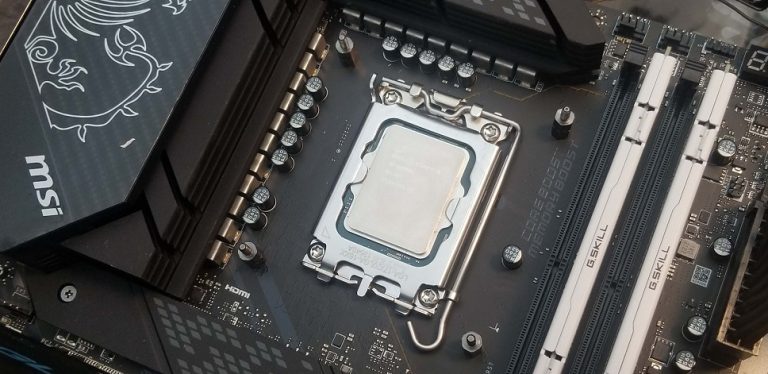
PC gaming has evolved over the years, and today, you can see a variety of games with high-quality graphics that are a pure blessing for the eyes. These types of video games require high-level hardware to operate, and naturally, when you use high-level hardware which costs a whopping amount, you should know which CPU and GPU temperatures are best suited for you while gaming.
Temperature Ranges at a Glance
| Component | Idle Temp | Gaming Load | Danger Zone |
|---|---|---|---|
| NVIDIA GPU | 30°C – 45°C | 65°C – 85°C | 90°C+ |
| AMD GPU | 35°C – 50°C | 70°C – 90°C | 95°C – 110°C (Hotspot) |
| CPU (Intel/AMD) | 30°C – 45°C | 60°C – 80°C | 95°C+ |
Optimal CPU Temperatures
Whenever we talk about CPUs, no matter if they are for gaming or office work, two big vendors appear in mind: Intel and AMD.
The optimum temperature for a CPU in gaming should not rise above 176°F (80°C) and in normal use, it shouldn’t exceed the limit of 167°-176°F (75°-80°C). If you use the CPU at high temperatures for a long time, you can face the “blue screen of death” due to thermal shutdown protection.
How to Keep Your CPU Cool?
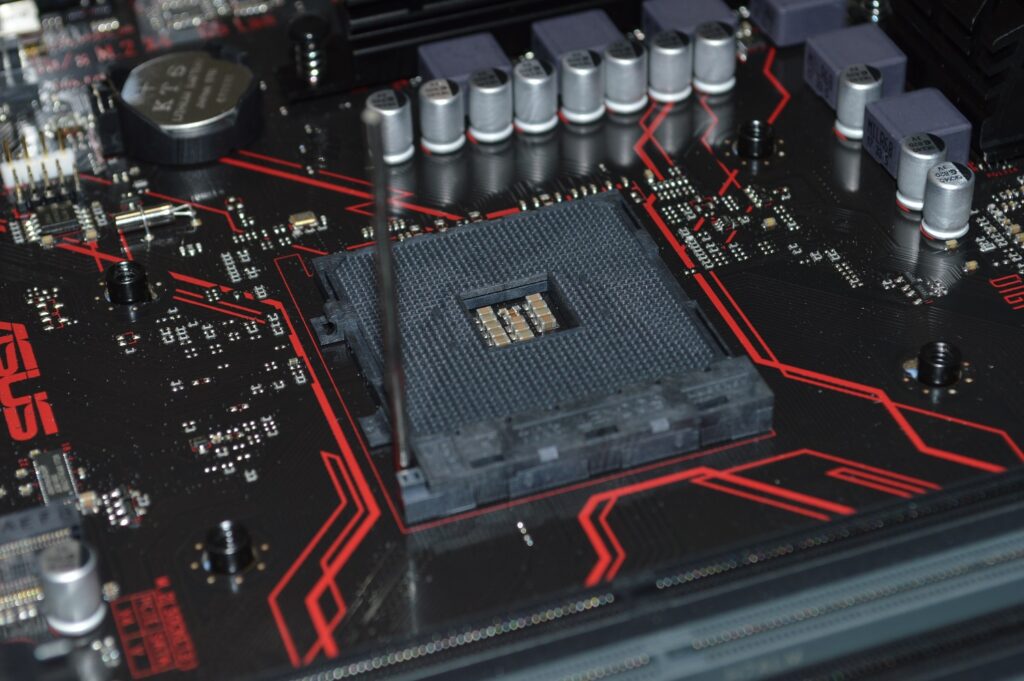
- 1. Clean out your Fans: Having dusty fans can be a major reason for high temperatures. Simply clean your fan on a weekly or monthly basis to have a dust-free CPU fan.
- 2. Install a new CPU Fan: Your old fan can give your CPU a tough time in maintaining temperatures. If you are looking for the best fans available for CPU in the market, check our guide.
- 3. Install a water cooling kit: If air cooling doesn’t help, consider an AIO liquid cooler. Water cooling is generally more effective and runs quieter.
Optimal GPU Temperatures And Tweaks
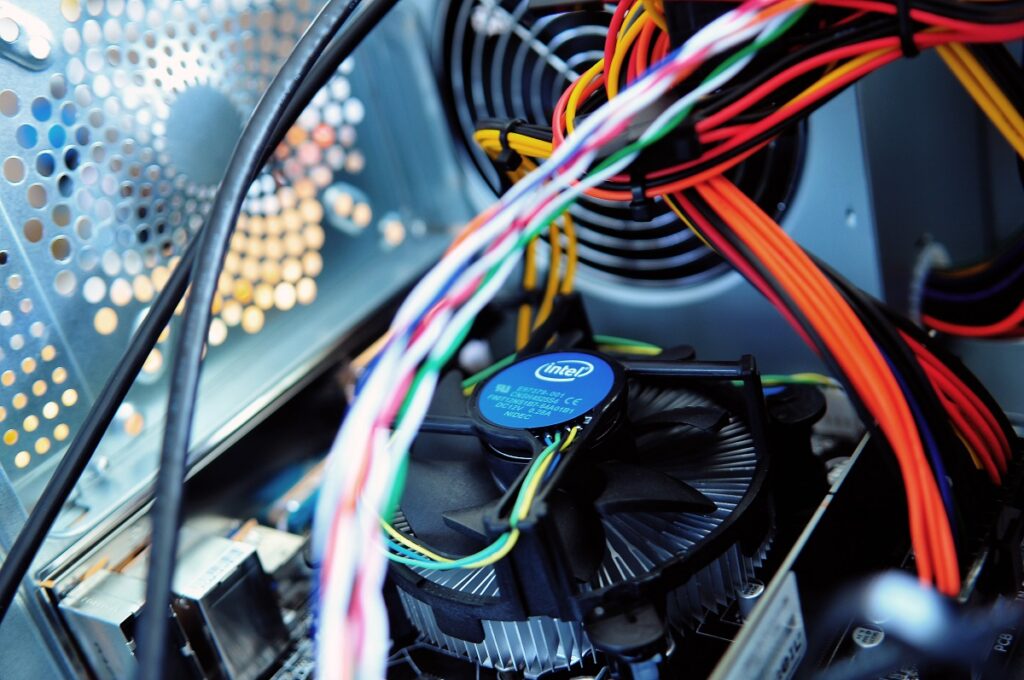
A very important component of PC gaming is its GPU or graphics card. All the high-quality graphics and smoother gameplay are not possible if you do not have a capable GPU.
For the AMD Radeon RX series, the temperature shouldn’t rise above 110 degrees Celsius (Junction Temp), and for the NVIDIA RTX series, the GPU temperature should ideally stay below 83-85 degrees Celsius.
How to Optimize Your GPU Temperature?
If your GPU is giving you temperatures above these limits, try the following tweaks:
- Clean the GPU fan and heatsink: Use compressed air to remove dust buildup that restricts airflow.
- Change your System Case: A narrow case leads to restricted airflow. Check our post on the Best PC cases for airflow.
- Use GPU utilities: Use software like MSI Afterburner to create a custom fan curve, increasing fan speed as temperatures rise.
- Avoid Overclocking: Overclocking increases voltage and heat. Revert to stock settings if overheating occurs.
- Replace Thermal paste: Thermal paste degrades over time. Replacing it can significantly drop temps (warning: may void warranty).
How to Monitor Your GPU/CPU Temperatures?
We have explained the causes for high temperature; now let’s see how to monitor them accurately.
1. Using BIOS
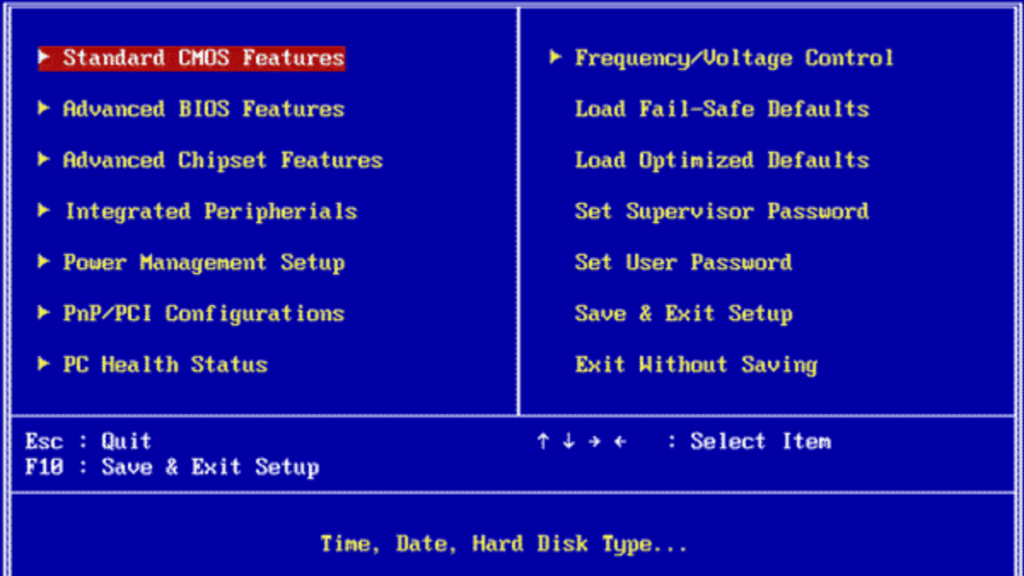
This is the simplest method to get precise temps without downloading software, though it only shows idle temps.
- Restart your system.
- Press the DEL or F2 key repeatedly during boot to access BIOS.
- Navigate to the “Hardware Monitor” or “PC Health” section.
Pros
- Simple Interface.
- No installation required.
Cons
- Cannot monitor while gaming.
- Shows idle temps only.
2. Using Vendor Software

AMD users can use Ryzen Master and Radeon Software. Intel users can use Intel Extreme Tuning Utility (XTU).
3. Using Third-Party Software
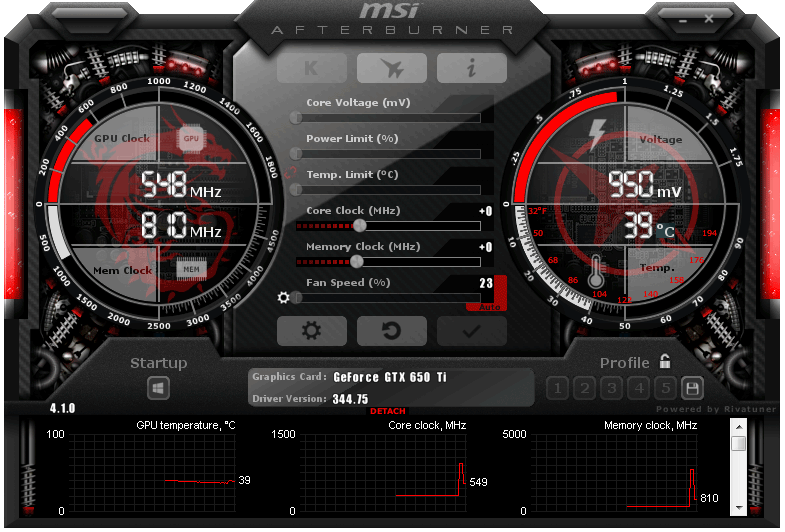
If vendor tools aren’t enough, third-party apps offer excellent monitoring overlays while gaming:
- HWMonitor
- Open Hardware Monitor
- MSI Afterburner (Best for in-game overlay)
- Core Temp
Frequently Asked Questions
What is a good GPU temp?
Whether you play games or do resource-intensive work, the general rule is to keep your GPU temp below 85 degrees Celsius at all times. If it rises higher, clean your PC or improve airflow.
Is 80 to 85 degrees Celsius hot for a GPU?
Technically yes, because at this point GPUs start throttling to reduce heat. While not immediately fatal, sustained temps above 85°C can reduce lifespan.
Is 70 to 75°C too hot for my GPU?
No. If it is 70°C under load, that is perfectly safe and normal. However, if it is 70°C at idle, there is a problem with your cooling.
What is a bad GPU temp?
A bad GPU temp is 90°C – 105°C. At this level, your system is likely to shut down automatically to prevent permanent damage.
Should GPU fans always be running?
No. Modern graphics cards often have a “0dB mode” where fans stop spinning completely when the card is idle or below 50-60°C to reduce noise.
Conclusion
We have covered everything from checking temps to fixing overheating issues. The optimal temperatures can differ per vendor, but we advise keeping them under 85 degrees Celsius under load. Remember: lower temperatures generally mean a longer lifespan for your expensive hardware. We hope these tweaks help you sort out your thermal issues!

A passionate tech enthusiast with a deep focus on PC hardware, gaming rigs, and performance tuning, Bertine Gaynor has spent years exploring the latest innovations in processors, GPUs, and custom builds. On DigitalUpbeat.com, he shares hands-on reviews, performance breakdowns, and expert insights to help readers make smart hardware choices. When not testing components, he’s often optimizing setups for peak efficiency or diving into the latest tech trends shaping the future of computing.